What’s changing
Payday Super is the ATO's new requirement to pay super on payday, and it starts on 1 July 2026:
-
For all pay runs with a physical payment date on or after 1 July 2026, superannuation is paid each pay run, rather than quarterly. There is no change to your usual processes in MYOB Exo Employer Services, except for processing and paying superannuation more frequently.
-
Superannuation payments must reach employee super fund accounts within 7 business days.
-
Superannuation guarantee (SG) and superannuation guarantee charge (SGC) are now calculated off a single earnings base, called qualifying earnings. Learn more.
-
The maximum contributions base is changing to annual, rather than quarterly.
-
The qualifying earnings amount (Q) is included as part of mandatory STP reporting. This is a year-to-date figure, and no further amounts are reported once it reaches the maximum contributions for the year. Year-to-date super guarantee (SG) liability is also still included in STP reporting.
For more information about your Payday Super obligations, see the Australian Taxation Office website.
Your responsibilities
While the ATO has given advice they will be focusing enforcement on employers who don't do the right thing, if you don't pay super guarantee in full, on time, and to the right fund, you may be liable for penalties called super guarantee charges (SGC). For more information, see The Super Guarantee Charge on the ATO website
Here are some steps you can take to help avoid these charges:
-
Before July 1, review your pay items and make sure they are set to Include in Qualifying Earnings, and Liable for Superannuation as per ATO guidelines.
-
Make sure you make all super guarantee payments within 7 business days after each regular pay run.
Updating payroll settings to comply with Payday Super
Upgrade to MYOB Exo Employer Services 2026.01
MYOB Exo Employer Services supports Payday Super changes in the 2026.01 release. See the release notes for upgrade instructions.
Set up qualifying earnings any time before 1 July 2026
To correctly report year-to-date qualifying earnings in STP files, you need to set up qualifying earnings for pay items any time before 1 July 2026.
-
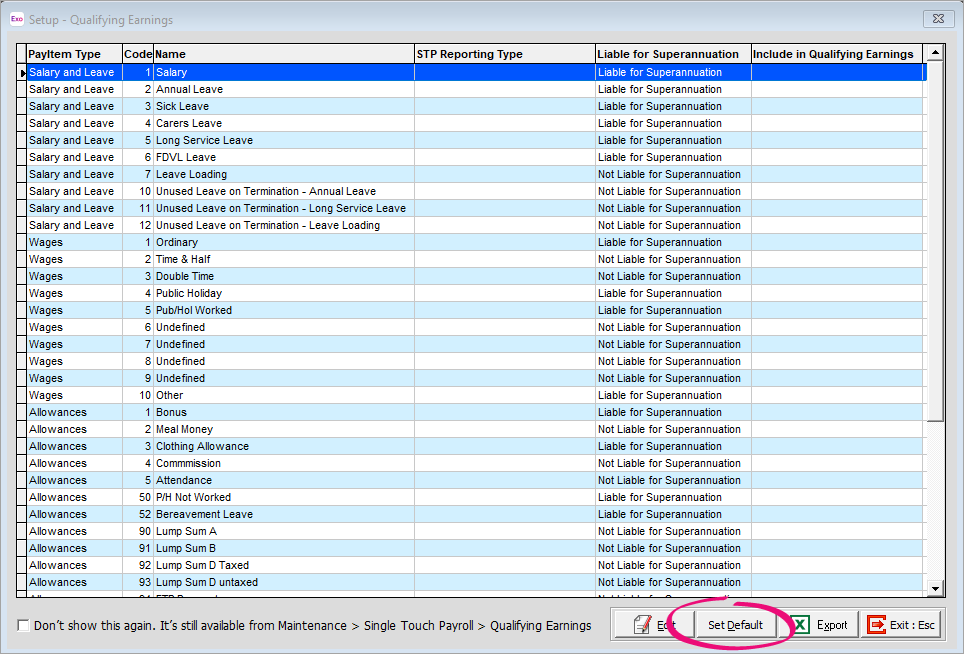
Log in to MYOB Exo Employer Services. The Setup - Qualifying Earnings screen opens automatically.
If it doesn’t open, go to Maintenance > Single Touch Payroll > Qualifying Earnings. -
Click Set Default to update pay items in bulk.
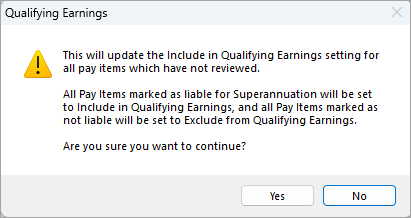
A message window lets you know that all pay items liable for superannuation will be included in qualifying earnings, and all pay items not liable for superannuation will be excluded. Pay items you’ve set up individually won’t be changed by the bulk update.
-
If you’re okay with how pay items will be bulk updated, click Yes.
-
On the Setup - Qualifying Earnings screen, review the Include in Qualifying Earnings column. If the bulk update got anything wrong, you can change the setting by either double-clicking the pay item or clicking Edit.
Set up pay items that are not ordinary time earnings after completing June pays
From 1 July 2026, some allowances that are not ordinary time earnings (e.g. commissions) will need to be included in qualifying earnings. For more examples, see the ATO website.
That means that, after completing all pays in June and before processing any pays with a payment date on or after 1 July 2026, you need to update these pay items to be Liable for Superannuation and Included in Qualifying Earnings.
-
Go to Maintenance > Allowances.
-
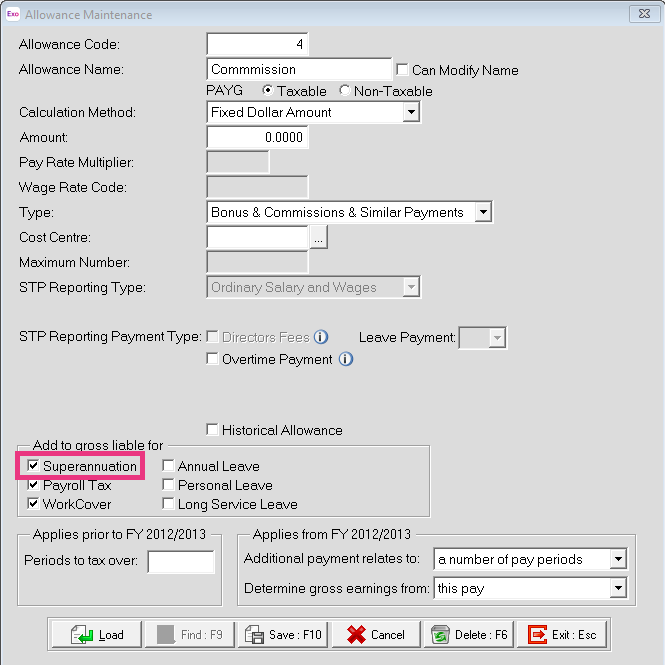
Open an allowance that needs to be included in qualifying earnings.
-
Select the Superannuation checkbox.
-
Save your change.
-
Go to Maintenance > Single Touch Payroll > Qualifying Earnings.
-
Double-click the allowance in the list.
-
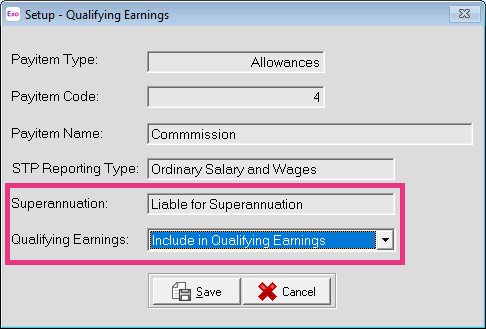
In the pop-up window, set the Qualifying Earnings dropdown to Include in Qualifying Earnings.
-
Save your change.
There are rare circumstances where you might need to set a pay item as liable for superannuation but exclude it from qualifying earnings (e.g. when an employee's contract includes an industrial instrument). For more details, see the ATO website.
Move from the ATO's super clearing house
The ATO's Small Business Superannuation Clearing House (SBSCH) will close from 1 July 2026 and you won't have access after this date. More about this closure.
Update the superannuation expected payment date settings
After completing all pays in June, and before processing any pays with a payment date on or after 1 July 2026, you must update the default expected superannuation payment date to be the same as the physical pay date. This setting determines the expected payment date for superannuation contributions that is printed on employee payslips.
-
Go to Utilities > Setup EXO Payroll.
-
In the left panel, click Superannuation setup and then click Superannuation Guarantee.
-
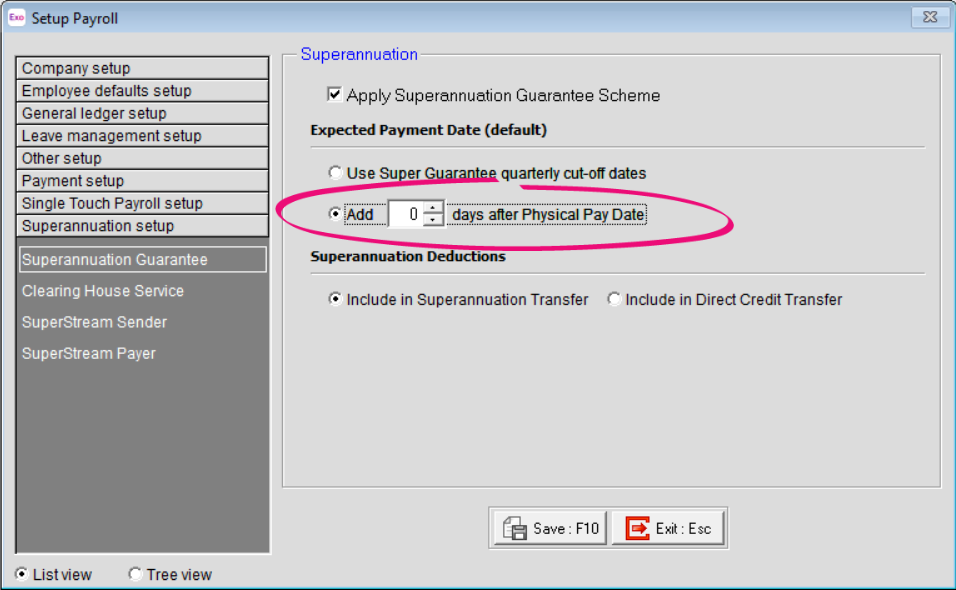
In the Expected Payment Date (default) section, select Add 0 days after Physical Pay Date.
-
Save your changes.
Update the maximum earnings base
From 1 July 2026 the maximum contributions base is changing to annual, rather than quarterly.
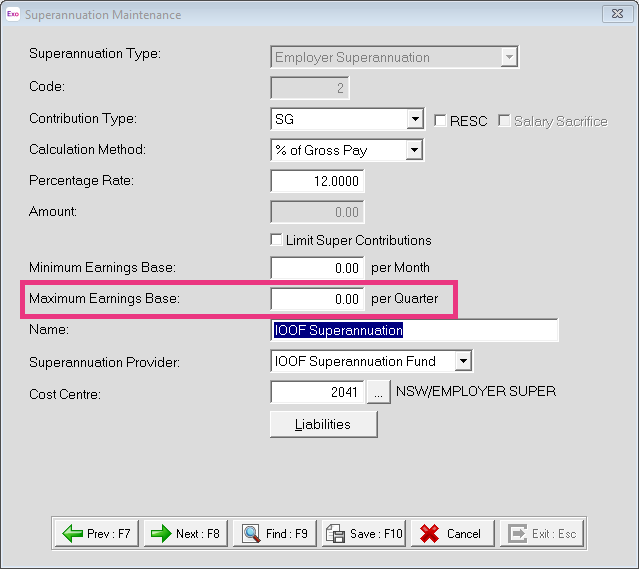
After completing all pays in June, and before processing any pays with a payment date on or after 1 July 2026, you must update the maximum earnings base per quarter to 0.00 for each employer superannuation. You can do this by going to Maintenance > Superannuations.
Setting this value to 0.00 removes the maximum contribution base. A later release will introduce support for an annual maximum contribution base.
Pay superannuation on pay day
From 01 July 2026 superannuation is required to be paid on pay date. When creating your superannuation payment batch, use the period option User defined dates and enter the Physical Pay Date in the From and To date fields.