
The KiwiSaver Update Tool prevents users from entering an Application date before the end date of any opened or closed pay period.
For example, if the March monthly pay (that has a period end date of 31st March) is opened or closed, the KiwiSaver Update Tool will not allow an Application date earlier than 1st April. This means the tool can't be used for other Weekly or Fortnightly periods that require an Application Date before 1st April. The following message appears.
The Application Date must be later than the most recent open or closed period end date in the system which is currently 31/03/2026.
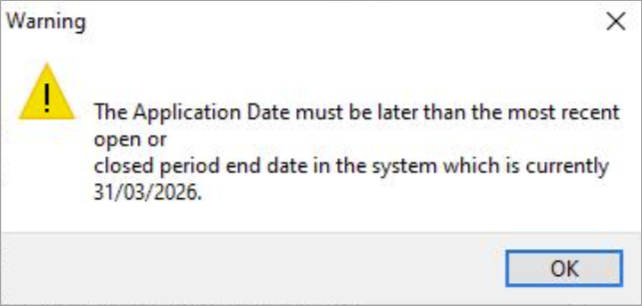
If you experience this error, please run through the steps below.
Warning:
-
Please ensure you run through this process on your TEST database before performing the same on LIVE to ensure it is working as expected.
-
Backup of your LIVE database beforehand.
Steps for Online customers:
-
Run the KiwiSaver Update Tool using the instructions are available here to update only the employees in the period that are due for the increased KiwiSaver rate.
Use a unique Application date in the future, it can be any date in the future, as long as it is unique.
E.g. If you are updating employees for Weekly period 23/03/2026 to 29/03/2026, use an Application Start date of, for example, 10/04/2099 . This will add an end date of 9/04/2099 to old employee KiwiSaver records, and create new 3.5% KiwiSaver records with a Start date of 10/04/2099. -
Contact PayGlobal Support to update the the End date of old KiwiSaver records and Start date of new KiwiSaver records. You will need to provide them with the Application date you used in Step 1.
-
PayGlobal Support will run the following scripts to fix the dates.
-
Script to change the Start Date of the new employee KiwiSaver records:
UDPATE EmplSuperFund SET StartDate ='2026-03-23' WHERE StartDate ='2099-04-10' -
Script to change the End Date of the old employee KiwiSaver records:
UDPATE EmplSuperFund SET EndDate ='2026-03-22' WHERE EndDate ='2099-04-09'
-
-
If you have another Period with different dates, you will need to run through steps 1 - 3 again.
Steps for On premise customers:
The steps are the same as above. However, at step 3, you will contact your IT/SQL Admin to run the scripts, instead of contacting PayGlobal Support to run the scripts.
Note: the scripts above are specifically for temporary Application date of 2099-04-10 and correct Application date of 2026-03-23. You or the IT/SQL Admin will need to adjust the dates in the scripts before running them.
Another alternative is to engage a consultant to assist with running the scripts.