
Payroll Import Types control how PayGlobal identifies and imports files into a pay. They define where PayGlobal looks for files, which files it displays in Import Pay, and which file format and pay period the import is intended for.
This page explains how Payroll Import Types work, how to check the setup, and what to do when no files are found in Import Pay.
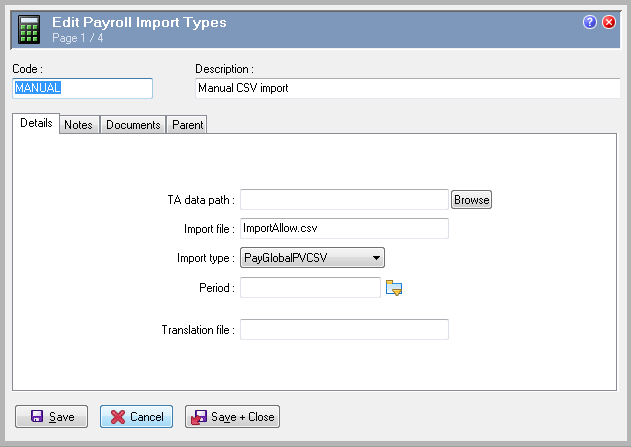
What is a Payroll Import Type?
A Payroll Import Type is a configuration record that tells PayGlobal how to interpret an import file. It can also help prevent different groups of import files from being imported into the wrong pay sequence and can translate allowance codes when the source system uses different, mappable codes.
PayGlobal can have one import path, file and type configured under Administration | Modify Company Settings | Payroll | Import from T&A | TA tab. Additional paths, file names and import types can be configured in Payroll Import Types records.
Open Payroll Import Types
-
In the PayGlobal tree, go to Payroll | Payroll Import Types.
-
Open an existing record to review it, or right-click and select Add Record to create one.
-
Select the Details tab to view or update the import settings.
Payroll Import Type fields
TA data path
The folder where PayGlobal looks for the import file.
-
Enter the path to the folder containing the file.
-
The path must end with a backslash. For example:
C:\PayGlobal\Import\ -
If different import files are stored in different folders, configure the appropriate path in each Payroll Import Type record.
-
PayGlobal searches the configured TA data paths when you open the Import Files list in Import Pay.
For Online customers, the TA data path for local network folders must start with \\TSCLIENT\ and the : after the drive letter must be removed.
Import file
The file name or wildcard pattern that PayGlobal uses to identify files for this import type.
Examples:
-
ACTUALS.CSVdisplays that specific file. -
*.CSVdisplays CSV files in the configured path. -
RESC.csvis more specific than*.csvwhen a folder contains several CSV-based imports.
Use a specific file name or a distinctive pattern where possible. Broad patterns can cause more than one import type to match the same file.
Import type
The format or source of the import file. Available options can include:
-
PayGlobal
-
PayGlobal PTCSV
-
PayGlobal PVCSV
-
PayGlobal DBF
-
PayGlobalRESCCSV
-
CSV
-
CSVDBF
-
TimeMaster
-
Style 1
-
Maximise
-
Workforce Management, if enabled
The Workforce Management option retrieves external pay-run data directly rather than importing payroll transactions from a file. For this option, the TA data path is not used.
More information regarding the import file format required for these Import Types can be found here: Payroll Import Types - Details
Period
The pay period that the import type is intended for, such as Weekly or Monthly.
Use this setting to help prevent an import file from being loaded into the wrong type of pay sequence. For example, a Payroll Import Type set to CSV and Weekly cannot be used to import into a monthly pay sequence.
Translation file
An optional .dbf file that maps allowance codes from the source system to PayGlobal allowance codes. The table must contain two character fields named OldCode and NewCode.
If an allowance in the import file cannot be translated because it has no matching details, PayGlobal displays a warning and does not import the file.
Import a file into a pay
-
Open the pay sequence that will receive the transactions.
-
Go to Payroll | Import Pay.
-
Under Import Files, select the file and confirm that the displayed Import Type is correct.
-
Under Pay Sequences, select the target pay sequence.
-
Review the remaining options and continue with the import.
More than one file can appear when multiple Payroll Import Types are configured. Always confirm that the file and Import Type match the pay sequence before continuing.
No files found in Import Pay
If the Import Files list is empty, the most common cause is that the relevant Payroll Import Type is pointing to the wrong folder or the file name does not match the configured pattern.
Check and update the Payroll Import Type path
-
Confirm that the import file exists in the folder where it was saved or generated.
-
In PayGlobal, go to Payroll | Payroll Import Types.
-
Open the Payroll Import Type used for this import.
-
On the Details tab, check the TA data path.
-
Update the path so it points to the folder containing the file.
-
Confirm that the path ends with a backslash, for example
C:\PayGlobal\Import\. -
Save the record.
-
Close and reopen Payroll | Import Pay, then check the Import Files list again.
Check the file name pattern
Confirm that the Import file value matches the actual file name, including its extension. For example:
-
A file named
ACTUALS.CSVwill not be found by an import type configured only for*.ADT. -
A pattern such as
*.CSVmay match several files or the wrong CSV-based import. -
If the file name changes each pay, use a wildcard pattern that still uniquely identifies the intended file.
Check the Company Settings import path
PayGlobal can also use the import path configured in:
Administration | Modify Company Settings | Payroll | Import from T&A | Import TA
Check this path as well as the TA data path on the Payroll Import Type record. This is particularly important if the file is configured under Company Settings rather than under a separate Payroll Import Type.
Check the environment and folder access
If the database has recently been refreshed, moved, or changed from Live to Test:
-
Confirm that the Payroll Import Type points to the correct environment-specific folder.
-
Do not use the same Live and Test import folder unless this is intentional and controlled.
-
Confirm that the PayGlobal user has access to read the folder and its files.
Using separate Live and Test locations helps prevent a file intended for one environment from being imported into the other.
Check the pay period and import type
If the file is visible but cannot be selected for the intended pay, check the Period setting on the Payroll Import Type. A period restriction can prevent a file from being imported into a different pay frequency.
Also confirm that the Import Type matches the file format, such as CSV, PayGlobal PVCSV, or PayGlobal PTCSV.
Important checks before importing
-
Confirm the file is in the expected folder before opening Import Pay.
-
Check the file name, extension and Import file pattern.
-
Confirm the TA data path ends with a backslash.
-
Verify the displayed Import Type matches the file format.
-
Verify the target pay sequence is the correct period and pay.
-
If multiple files appear, select only the file intended for the pay sequence.