
The following process outlines an easy way to get the User-Defined Accumulator (UDA) data from an employee’s record in PayGlobal, into Excel and then sorted by User Defined Accumulator Code and then Period End date.
-
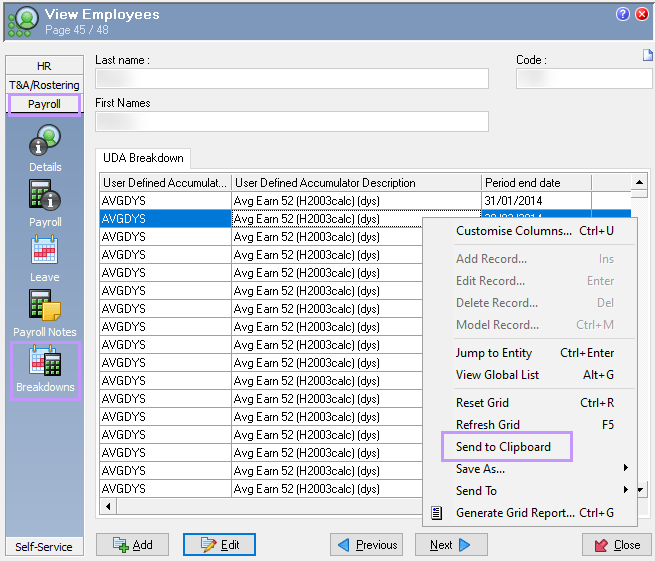
In the employee’s record, under Payroll > Breakdowns, right-click into the grid and select ‘Send to Clipboard’:
-
Open a new Excel workbook, click into the A1 cell and press Ctrl + V on your keyboard to paste the contents of the clipboard into the workbook. The columns should get split in Excel correctly, although, they will not re-size automatically so you will need to do this manually.
-
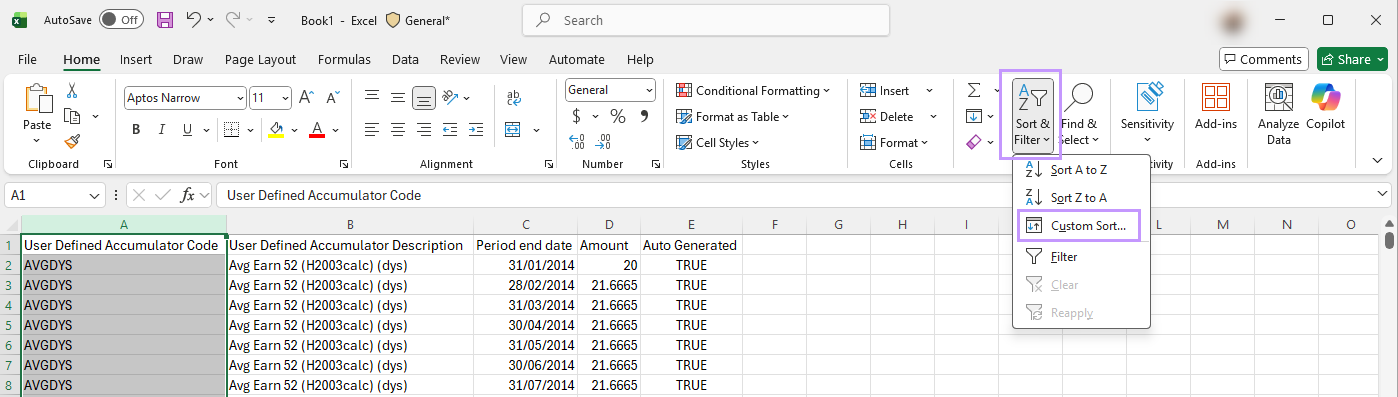
Select a column by clicking on the column header, which will highlight the entire column, and go to the ‘Sort & Filter’ menu and select ‘Custom sort…’:
-
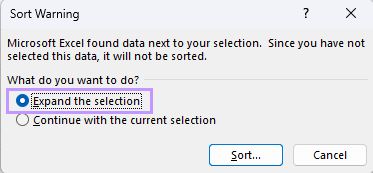
A ‘Sort Warning’ dialogue box will appear and you should select “Expand the selection” and click “Sort…”:
-
When the ‘Sort’ selection box appears you can first click on the ‘Add Level’ button to create a second selection line.
You can then select ‘User Defined Accumulator Code’, ‘Values’ and ‘A to Z’ in the ‘Column’, ‘Sort’ on and ‘Order’ fields for the first line.
On the second line you can select ‘Period end date’, ‘Values’ and ‘Newest to Oldest’ in these fields:
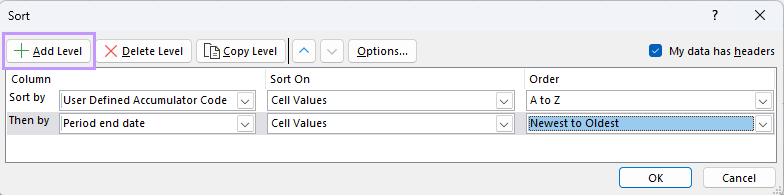
Once this is done, the data will be sorted by the User-Defined Accumulator Code (Column A), then according to Period End Date (Column C), which will make it easier to review and work with.