In Transaction View, users can add columns to the section above the Pay Sequence information. This is called the Employee View. The columns available to add relate to specific employee record data or transaction totals from the selected pays.
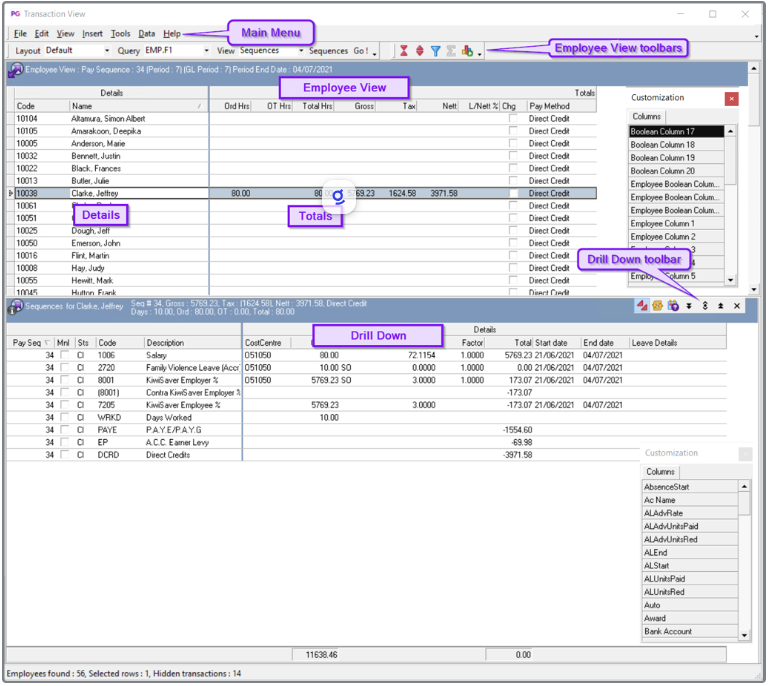
This help article will take you through adding a Numeric Column to the Employee View in
Transaction View.
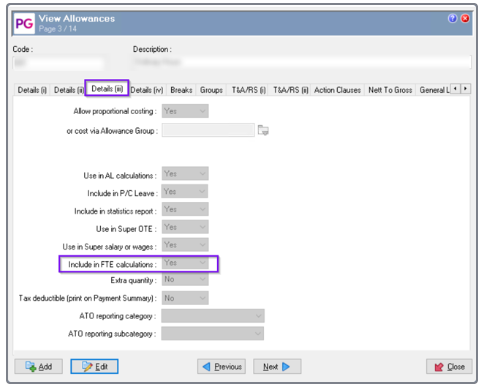
In this example we will add a column which shows the FTE Hours. This shows the Total quantity of all allowances with Include in FTE calculations = "Yes" in current pay or pays
Process:
-
Click in the Employee View section of Transaction View.
-
Press F10 on your keyboard
-
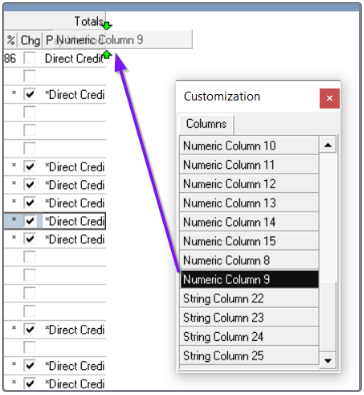
Click and drag a Numeric Column to the Totals section.
You will see two green arrows pointing to where you can drop down the column.
-
When you are clicked under the Numeric Column added, press Alt+F10.
This takes you to the Customise Column Extensions screen.
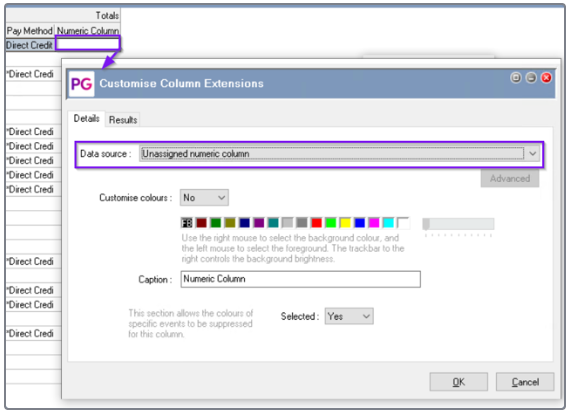
Customise Column Extensions enables advanced customisation of the Transaction view.
The Details tab page allows you to:
-
Specify the data source for a new column added with Customise Columns.
-
Use colour to highlight Results or exceptions.
-
Change column header names.
The Results tab page allows you to:
-
Set up exceptions.
-
Customise how exceptions are highlighted.
-
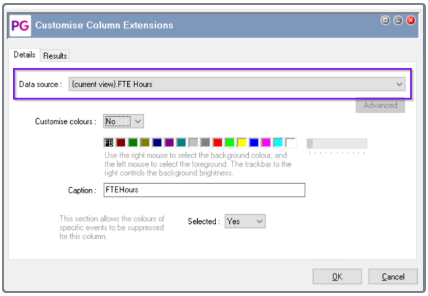
In the Details tab you will need to choose the Data Source.
The available Data Source in the dropdown will be in line with the specific type of column
being customised.
We have selected the {current view}.FTE Hours
-
Click 'Ok'
-
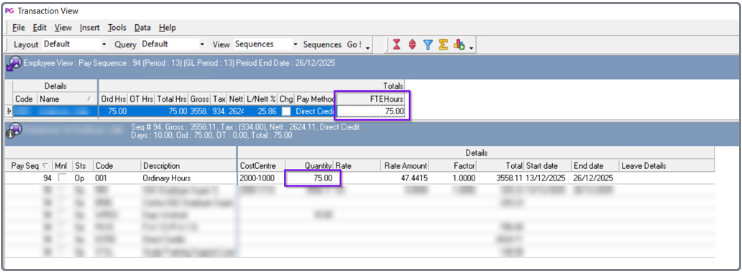
You will see the column with the Text from the Caption field in the Customise Column Extensions screen with the total FTE Hours for the specific employee in the pay selected.
-
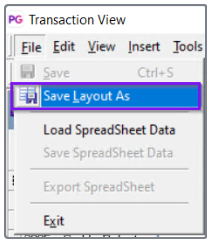
If you want this column to remain in the current Layout, you will need to click File > Save Layout As. You can keep the same name to add to the current layout or change the name.