
Context
PayGlobal includes a Days Worked transaction for employees in a standard pay sequence. This transaction records the employee’s days worked for the pay period; it is not a payment transaction and does not add an amount to the employee’s gross pay.
The Days Worked value is generally calculated from the employee’s profiled hours. PayGlobal can adjust the value when an employee starts or terminates within the standard pay period. The value can also be used in calculations such as proportional leave.
What you need to know
-
You normally do not need to add a Days Worked transaction manually to a standard pay.
-
The transaction has no monetary value. It does not pay the employee for hours worked.
-
To pay ordinary hours or missed hours, add or correct the relevant paying transaction, such as an ordinary-hours or allowance transaction.
-
If an employee has no profiled hours, review the Pay Header and enter the applicable Days Worked value where required.
View the Days Worked transaction
-
Open Transaction View.
-
Select the required pay sequence.
-
Select the employee.
-
In the lower section of the window, select the Days Worked transaction.
-
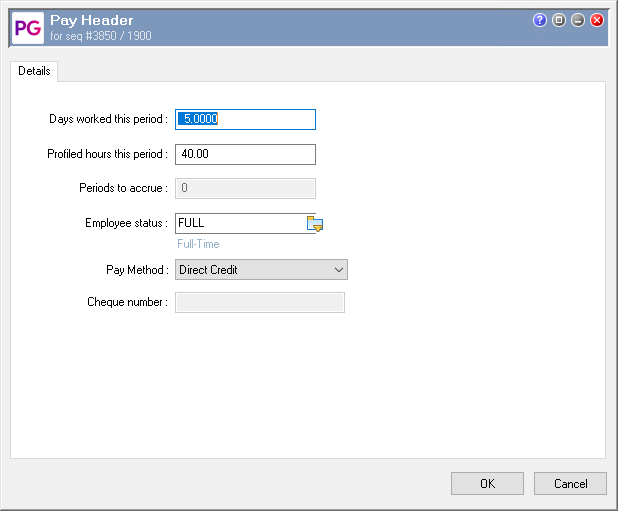
Review the Days Worked value in the Pay Header.
Open the Pay Header
You can open the Pay Header for the selected employee and pay sequence in either of these ways:
-
In Transaction View, press Ctrl+P.
-
Select or double-click the Days Worked transaction in the lower section of Transaction View.
The Pay Header shows the Days Worked this period and other pay-header details for the selected employee and pay sequence.
Correcting missed hours in a manual pay
If you open a manual pay to pay missed hours, first check whether the employee was paid in the related standard pay. In many cases, the employee’s Days Worked value is already accounted for in the standard pay and does not need to be added again to the manual pay.
However, if the employee was not paid in a related standard pay, you may need to add or update Days Worked in the manual pay so it reflects the employee’s days worked for that payment. The appropriate treatment depends on the pay scenario and how the employee’s pay is being corrected.
When correcting missed hours:
-
Open or select the manual pay in Transaction View.
-
Select the employee.
-
Open the Pay Header and review the Days Worked this period value.
-
Add or update Days Worked if the employee was not paid in the related standard pay and the value is required for the manual-pay scenario.
-
Add the relevant paying transaction for the missed hours.
-
Check the transaction details, including the quantity, rate, dates and any required costing or award information.
-
Process the manual pay and review the results.
Days Worked records the days worked; it does not replace the paying transaction needed to pay the missed hours.
Employees who start or terminate during a pay period
When an employee starts or terminates within a standard pay period, PayGlobal can adjust Days Worked this period using the employee’s profiled days at the time the pay is opened. Check the value if the employee’s start or termination date falls within the pay dates.
If the employee does not have profiled hours, enter the applicable value in the Pay Header rather than relying on an automatically calculated value.
Important: removing an employee from a pay sequence
Changing Days Worked to zero does not remove the employee from the pay sequence. If the employee should not be included in the pay, select the Days Worked transaction and use Tools > Delete Employee From Pay Sequence. This removes the employee’s pay header and related transactions from that pay sequence.
Frequently asked questions
Does the Days Worked transaction pay the employee?
No. It records days worked for the pay period and has no monetary value.
Do I need to add Days Worked when paying missed hours in a manual pay?
It depends on the scenario. If the employee was already paid in the related standard pay, Days Worked generally does not need to be added again to the manual pay. If the employee was not paid in the related standard pay, you may need to add or update Days Worked in the manual pay. In all cases, Days Worked does not replace the hours or allowance transaction needed to pay the missed hours.
Why is Days Worked showing as zero in a manual pay?
A manual pay may default Days Worked this period to zero because manual-pay transactions are not normally related to days worked. Review the Pay Header and update the value where the employee was not paid in a related standard pay and Days Worked is required for the scenario.
Why does the employee still appear after I delete the other transactions?
Deleting or zeroing individual transactions does not remove the employee from the pay sequence. Use Tools > Delete Employee From Pay Sequence from the employee’s Days Worked transaction.
What should I check if the Days Worked value is incorrect?
Check the employee’s profiled hours, start or termination date, and the Pay Header for the relevant pay sequence. If the employee has no profiled hours, enter the applicable value in the Pay Header.