
This guide provides instructions to setup Deduction codes for Novated Lease payments.
Notes:
-
You should follow the steps below in your TEST environment and test thoroughly before you implement in your LIVE production database.
-
The screenshots have been taken from one of a Test database. Please change the codes and descriptions of your deductions as appropriate for your database.
Add Deduction for Novated Lease
Add a new deduction record with the following settings.
-
Navigate to Organisation > Entitlements > Deductions.
-
Right-click on any deduction to “Add Record”.
-
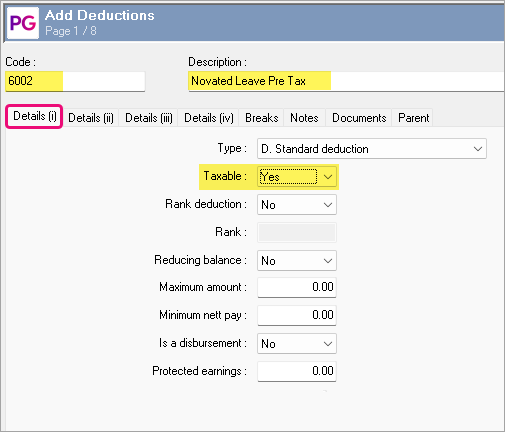
Type in the unique code and Description.
-
Set Taxable field to ‘Yes’ on Details ( i ).
-
Save and Close
Add Deduction for FBT
Repeat the same steps again but this time we will create a Novated Lease POST tax deduction (for FBT).
-
Navigate to Organisation > Entitlements > Deductions.
-
Right-click on any deduction to “Add Record”.
-
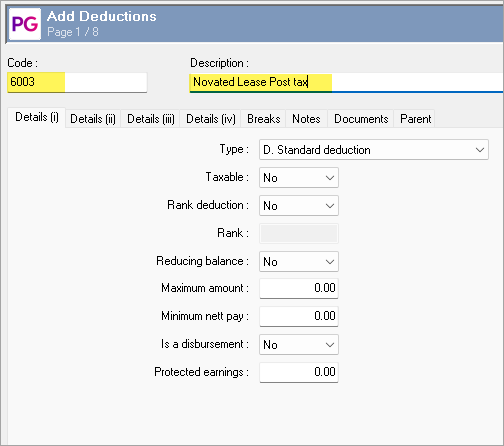
Type in the unique code and Description.
-
Save and Close.
Add Permanent Deduction to employee record.
-
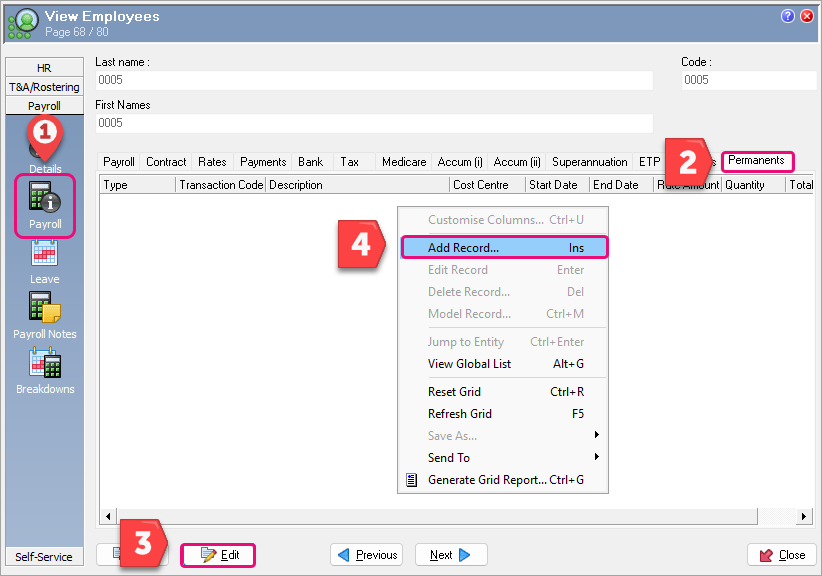
Open the employee record to Payroll > Permanents tab. Click Edit and right-click to Add record.
-
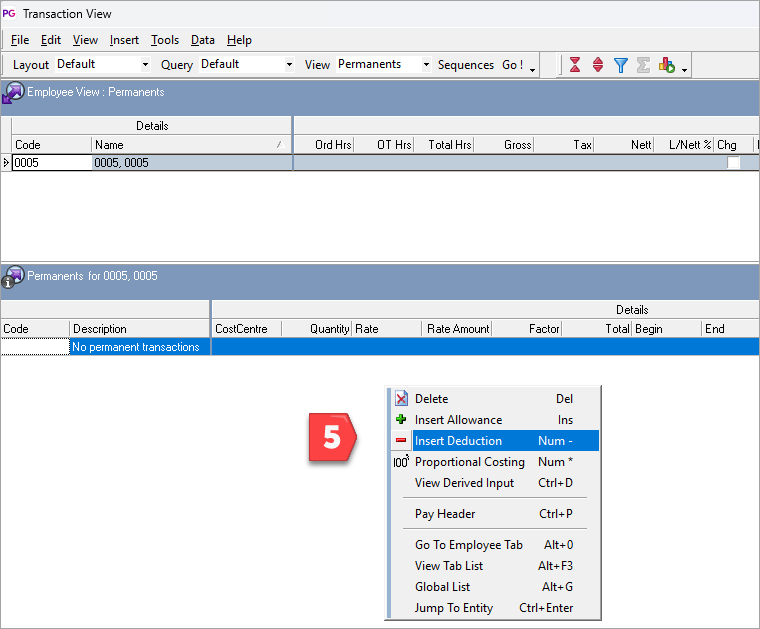
The Transaction View screen will open to Permanents area where you can right-click to Insert Deduction.
-
Enter in the deductions and details as required for Novated Lease Pre tax deduction.
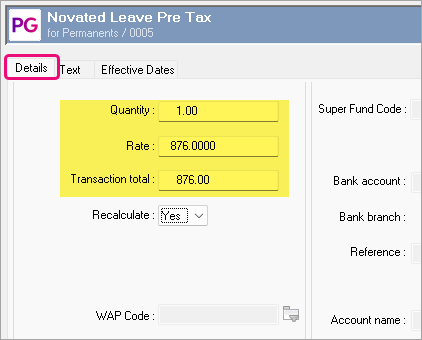
-
Enter Begin date on Effective Dates tab and click OK.
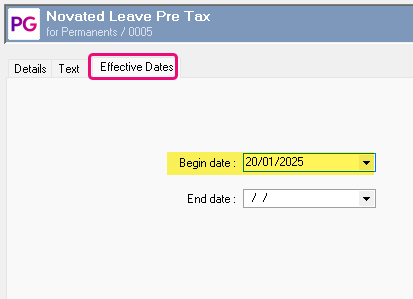
-
Repeat steps for Novated Lease Post tax deduction.
-
Click X on top right to close Transaction View answer ‘Yes’ to save changes.
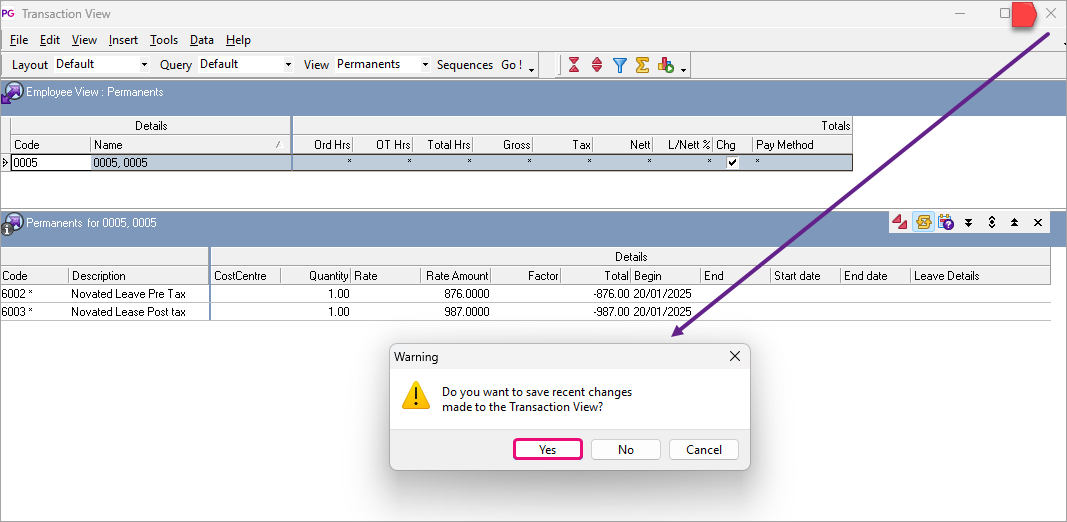
-
Save and Close.