
Use Customise Column Extensions in PayGlobal to identify the source of a column displayed in Transaction View. This shows the available Data Source and, where applicable, the corresponding table and database field.
Add a new column into the Employee section of Transaction View
-
Open Transaction View.
-
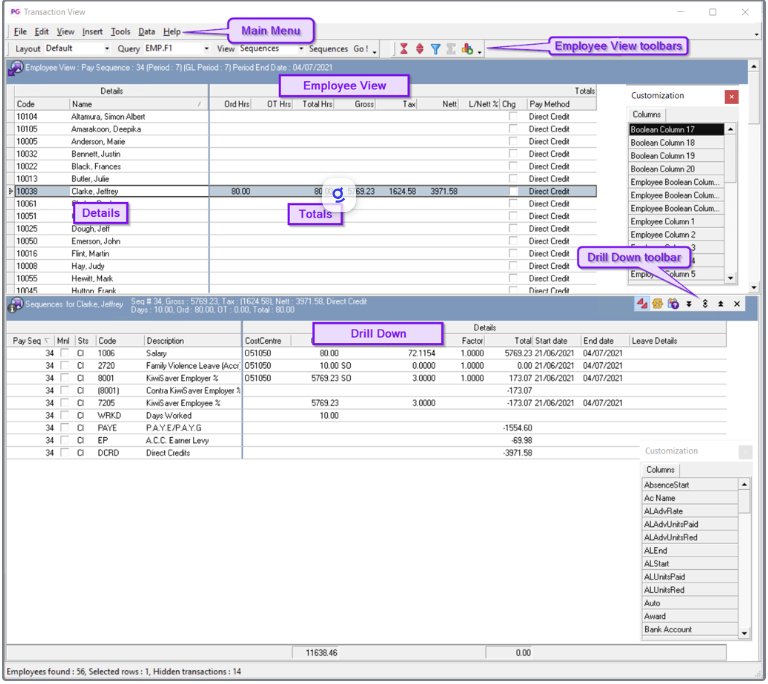
Click in the Employee View section of Transaction View.
-
Press F10 on your keyboard
-
Locate the column type you want to investigate.
-
Click, drag and drop the column from customization list
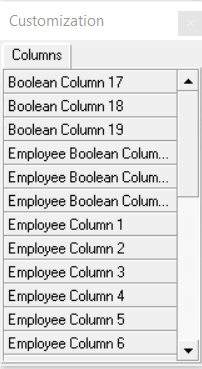
Any Columns starting with ‘Employee…’ can be used in the Details section. The other Columns in the list can be used in the Totals section.
How to identify a column’s Data Source
-
In the Employee View section of Transaction View, Click a space below the Column title.
-
Select Tools > Customise > Customise Column Extensions or press Alt+F10.
-
Review the Details tab.
-
Check the Data source field.
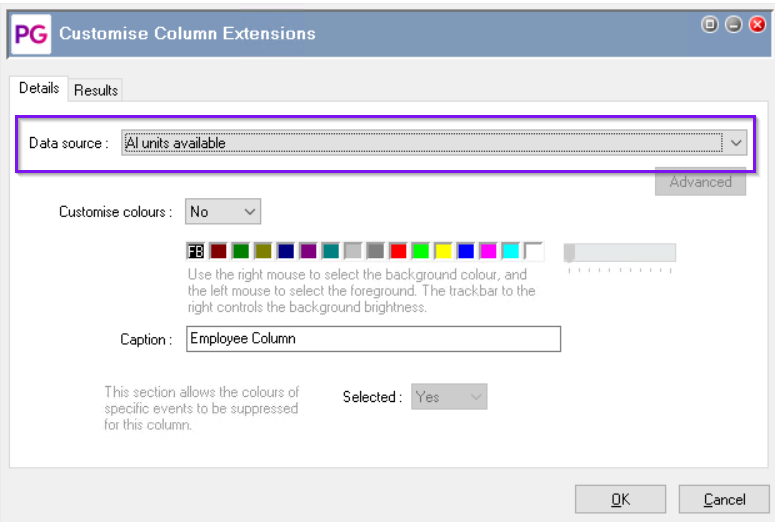
The Data source list is specific to the type of column selected. For example, Employee Date Columns display date fields, while Employee Numeric Columns display numeric fields.
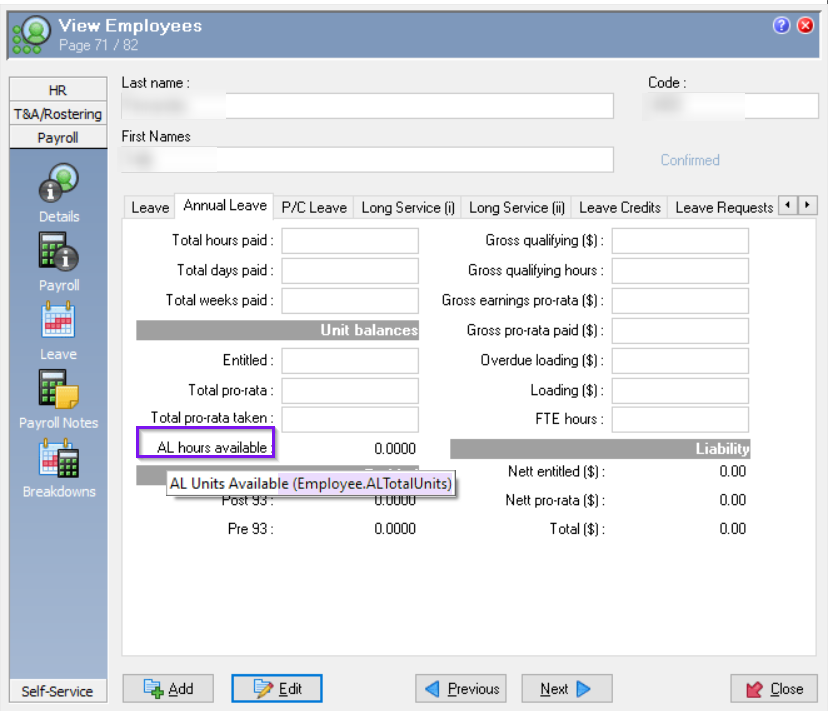
In the Employee Record, you can hover over fields to determine the Table and Field source.
For example, AL hours available is from the Employee Table and ALTotalUnits field.
More Information About Column Extensions and Data Source:
Add Column to Transaction View Employee section - Customise Column Extensions
Transaction View - Customise Column Extensions - Details
Transaction View - Customise Column Extensions - Details - Data Source