
User-Defined Accumulator (UDA) data can be generated from various sources.
In order to investigate or troubleshoot how this is set up in your system, there are several steps that will need to be taken:
-
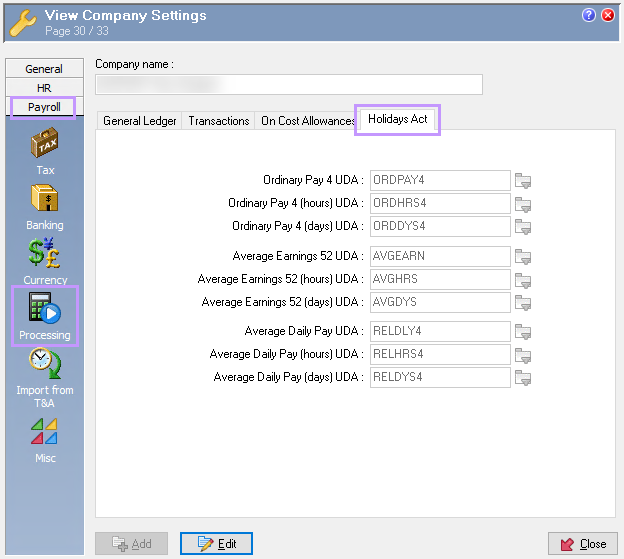
Navigate to Administration > Modify Company Settings and look under Payroll > Processing > Holidays Act.
This contains the breakdown of UDAs in the system and which UDA code these correspond to:
For more information on this you can reference PayGlobal Help Topic 299.
-
Navigate to Administration > User-Defined Accumulators and double click into the various UDA records to see how they are setup:
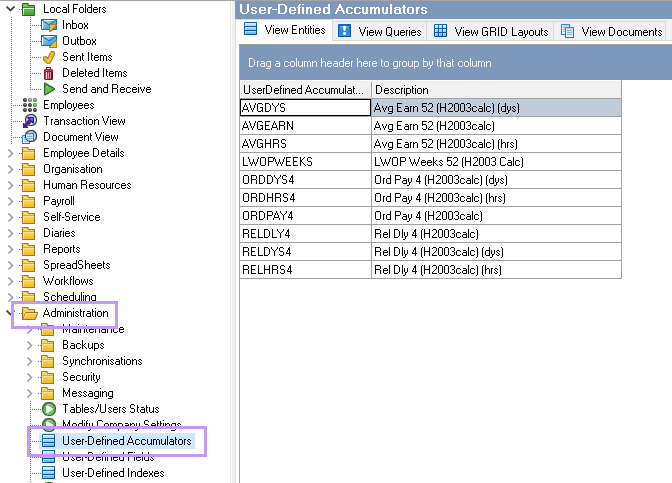
Typically, the default setup will generate data on the basis either of values in an Allowance Group or values in a specific field.
For more information please see PayGlobal Help Topic 8595.
Examples of UDAs:
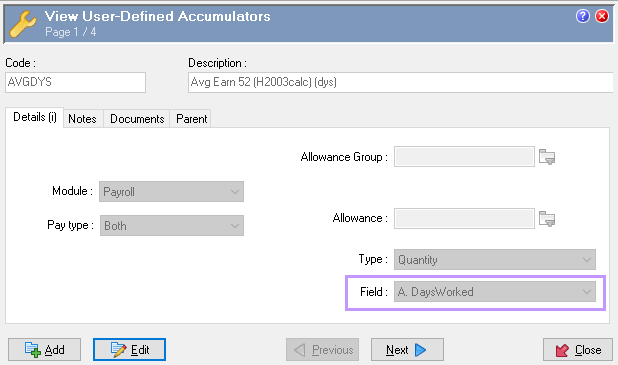
The following ‘AVGDYS: Avg Earn 52 (H2003calc) (dys)’ UDA is set up to pull data through from the ‘A. DaysWorked’ field, which comes through in the Pay Header within Transaction View:
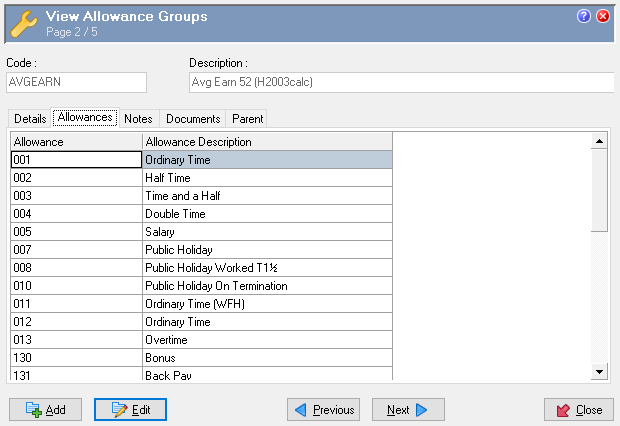
The following ‘AVGEARN: Avg Earn 52 (H2003calc)’ UDA is set to use the values of allowances that are specified in the ‘AVGEARN’ Allowance Group:
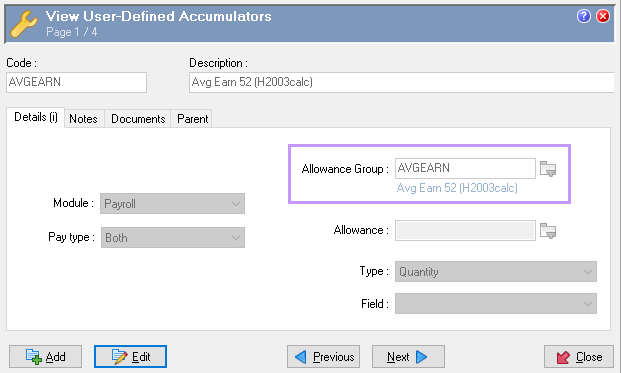
Whenever any of the allowances attached to this Allowance Group are put through an employee’s pay, the value for these will pull through into the specified UDAs.
You can further investigate which allowances will pull through into this UDA by navigating to Organisation > Entitlements > Allowance Groups and double-clicking on the Allowance Group in question and looking under the ‘Allowances’ tab:
For more information on Allowance Groups please see PayGlobal Help Topic 1990.
Checking the UDA breakdowns are accurate:
In order to ascertain whether the correct values are pulling through into the UDA breakdowns you will need to navigate into the concerned employee’s record and check the UDA values under the ‘Breakdowns’ section.
Often, the easiest way to review UDA breakdowns is to right-click into this grid and select “Send to clipboard”, then open a new Excel document and paste the data into this.
More information regarding this can be found in our Exporting and Sorting User-Defined Accumulator (UDA) Data
UDA Breakdown data is populated when you close a pay. Therefore, until a pay is closed, you will not see any change in the UDA values.
Making Corrections to UDA breakdowns:
If you find that there are UDA breakdowns which have doubled up or that there are UDAs missing, you can manually adjust these. Please note, that typically Days and/or Hours UDAs can double up if the Days/Hours values were included in any Manual Pays for employees as well as for the Standard Pay. Alternatively, allowance amounts may not flow through in situations where the allowance is not part of the Allowance Group that the UDAs are referencing.
In order to adjust these, you will need to go into Edit mode and then, depending on what you wish to achieve, do one of the following:
-
To add a UDA record you can right-click into the grid and
select ‘Add Record’. You will then need to fill out the UDA
record with details of which UDA you are entering, the period
end-date of that UDA and the amount. -
To edit an existing UDA record, right-click the UDA and select ‘Edit
Record’ and make the necessary changes. -
To delete an existing UDA record, right-click the UDA and select ‘Delete record'.
Please note: All screenshots are taken from our test Treetops database and no real employee’s data has been made available
Disclaimer
Please be aware that making any changes to the configuration shown on this page could have serious repercussions for how PayGlobal works and could lead to serious inaccuracies in the way employees are paid.
If testing any of this configuration, then this must be done in your Test database.
If any problems arise in a Live environment as a result of changes made, the resulting work undertaken to fix the problem will be deemed as chargeable.