
This article explains how to make adjustments to Superannuation paid under various scenarios.
Superannuation paid to a closed or wrong Superannuation fund
You will need to reverse the payment from the wrong or closed fund then process it to the new fund when the amount is returned from the Clearing House.
Ensure both the old fund and the new fund are active within PayGlobal
To do this, you will need to make sure the old fund record, and the new fund record are active.
Follow the steps below:
-
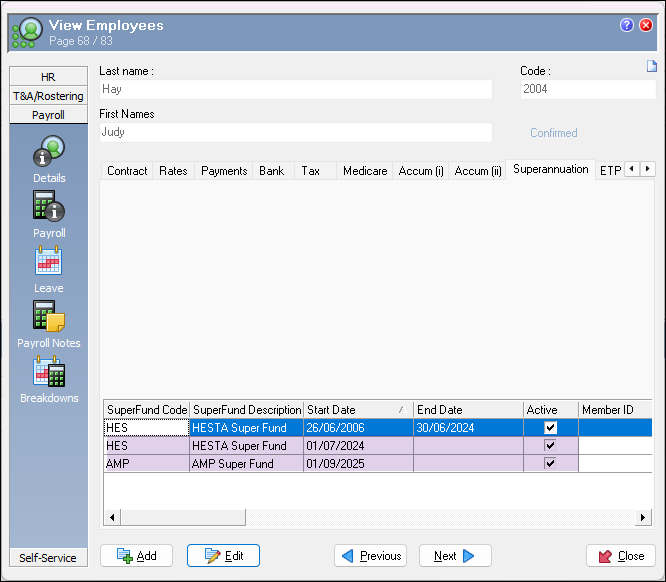
Open the Employee Record and go to Payroll / Superannuation tab.
-
Edit the Employee Record and open the old fund record
-
If the record is still ‘Active’ then you can close the record.
-
If the record is ‘Inactive’, press Edit and change the Active field to YES then save and close.
-
Process the adjustment
To process the Superannuation adjustment, it is recommended this is done via a manual pay.
-
Open a manual pay.
-
Go to Transaction View and select the Manual Pay sequence just opened.
-
Go to the Employee.
-
Adjust the Accumulator codes on the manual pay if needed by pressing CTRL A.
-
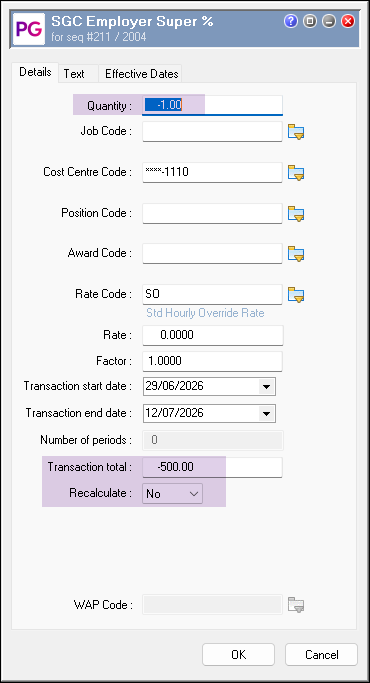
Add the Superannuation allowance to be reversed with the following information:
-
Quantity -1.00
-
Total Amount = the amount to be reversed. EG: -500.00
-
Recalculate = NO.
-
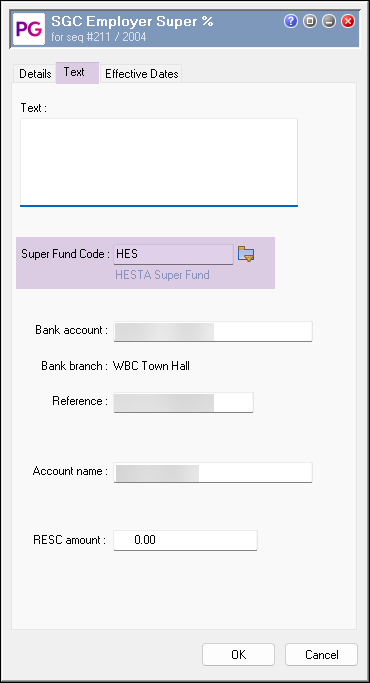
On the TEXT Tab, select the superannuation fund Record that the money needs to be reversed from.
-
Press OK.
-
-
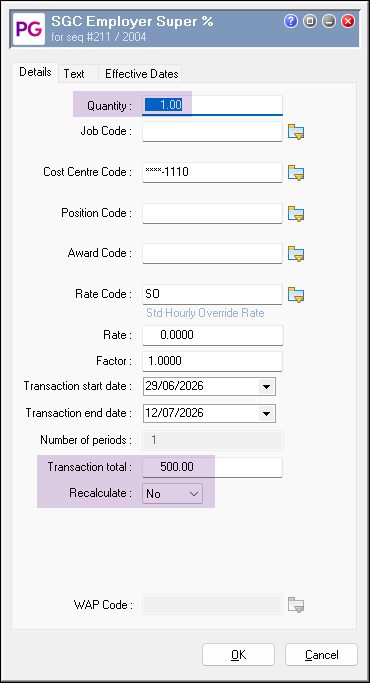
Add the Superannuation allowance to be paid with the following information:
-
Quantity 1.00
-
Total Amount = the amount to be paid. EG: 500.00
-
Recalculate = NO.
-
On the TEXT Tab, select the superannuation fund Record that the money needs to be paid to.
-
Press OK.
Superannuation overpaid because an allowance was set up Superable when it shouldn’t be
In this example, an employee has paid Superannuation on an allowance that shouldn’t be superable.
They paid Superannuation on a Reimbursement allowance. The allowance was $500 and the Superannuation amount paid on this allowance was $60.00
To resolve this issue, follow the instructions below:
Note: The Quantity is the earnings base and Total amount is the super amount.
-
Update the allowance so it is no longer superable.
-
Open a Manual Pay to make the adjustment
-
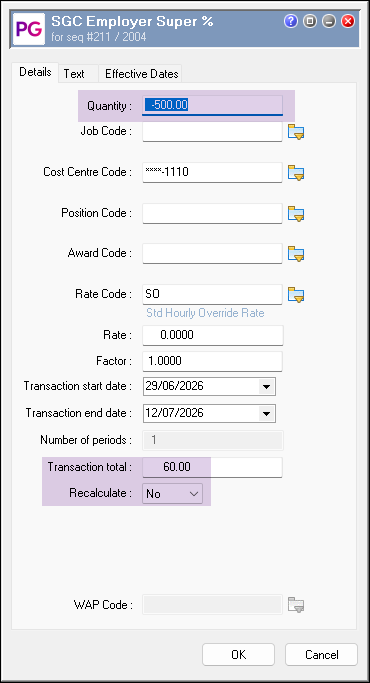
Go to the employee and add your Superannuation SGC allowance with the following information:
-
Quantity = -500.00 (
-
Total amount = -60.00
-
Recalculate = NO.
-
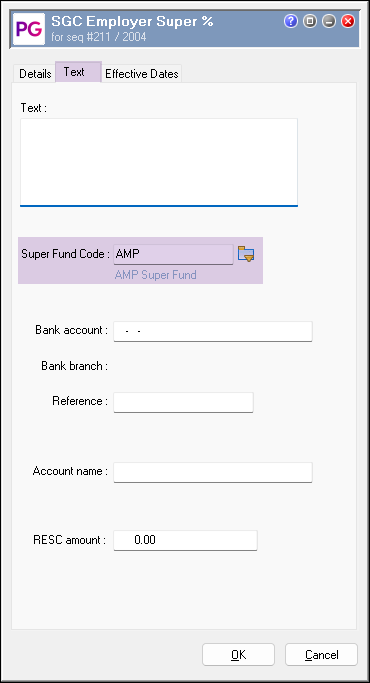
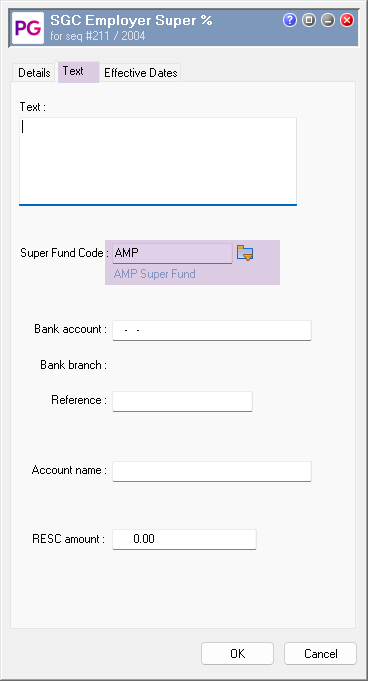
On the TEXT Tab, make sure the superannuation fund code is attached.
-
Press OK.
-
Process and close the pay.
-
If a warning as per the below appears on your ‘Process Pay Log’, the amount will not contribute to Annual cap calculation.
WARN Superannuation allowance transaction 500 has Recalculate flag set to No. The total amount will not be adjusted for Superannuation thresholds nor will RESC be recalculated for this transaction.
The same process would apply if an allowance was not set to superable when it should have been. You would use a positive quantity and total amount.
Superannuation was underpaid because a new employee was not set up correctly
If you need to process a Superannuation adjustment because a new employee was not set up correctly, you can follow the process outlined below.
-
Ensure the employee’s Superannuation record is set up correctly on the Employee / Superannuation tab.
-
Open a Manual Pay to make the adjustment
-
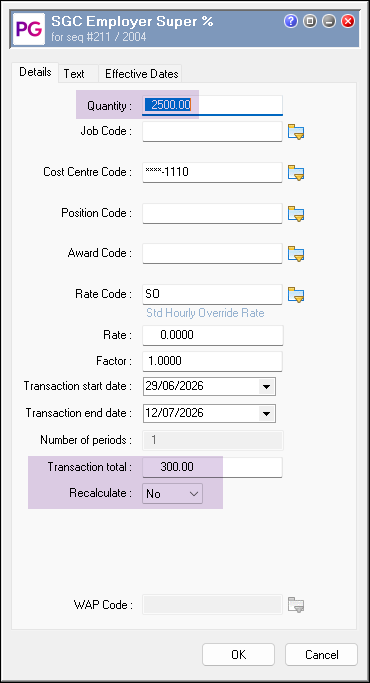
Go to the employee and add your Superannuation SGC allowance with the following information:
-
Quantity = 2500.00
-
Total amount = 300.00
-
Recalculate = NO.
-
On the TEXT Tab, make sure the superannuation fund code is attached.
-
Press OK.
-
Process and close the pay.
-
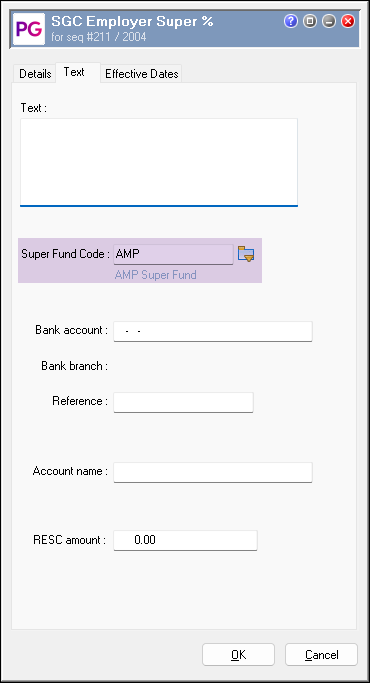
Superannuation not showing on Superannuation Reports or STP.
This scenario commonly occurs when Superannuation is manually added to a pay or an adjustment to superannuation has been processed without a Super Fund Record attached.
You will require the new superfund, if active, to be changed to Inactive before you reverse the transaction.
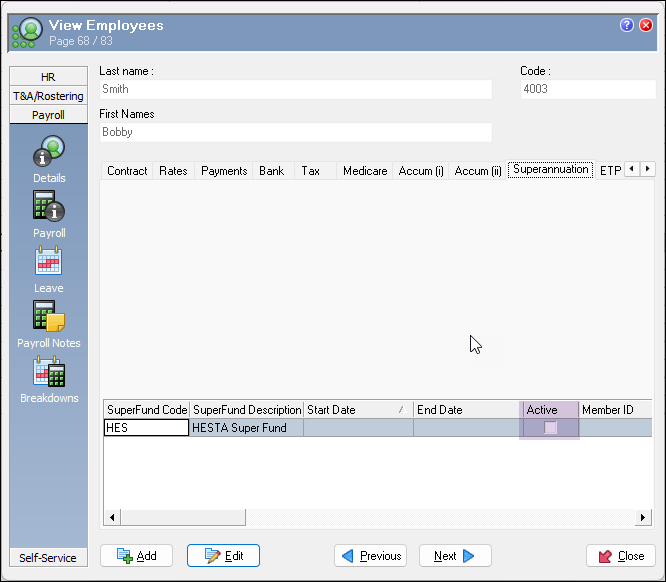
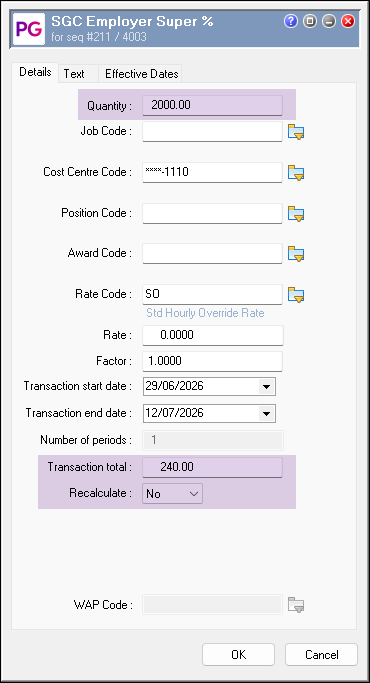
The example below shows how to process the reversal. The transaction amounts were:
-
Allowance code: 500
-
Quantity: 2000.00
-
Total Amount : 240.00
To process the reversal:
-
Open a Manual Pay.
-
Go into Transaction view and select the manual pay just opened.
-
Go to the employee and add allowance code 500.
-
Add the Quantity as: -2500.00
-
Add the Total Amount as: -240.00
-
Change Recalculate to NO.
-
Go to the Text Tab and ensure there is no Super Fund code listed.
-
Press OK to save.
-
Process and close the manual pay.
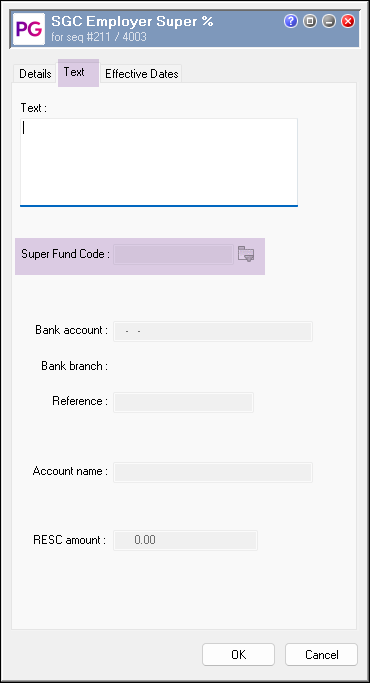
Now you need to process the payment to the Super Fund so that it’s included in the STP Submission and the Superannuation reports.
Firstly, make sure the Super Fund record is active for the employee.
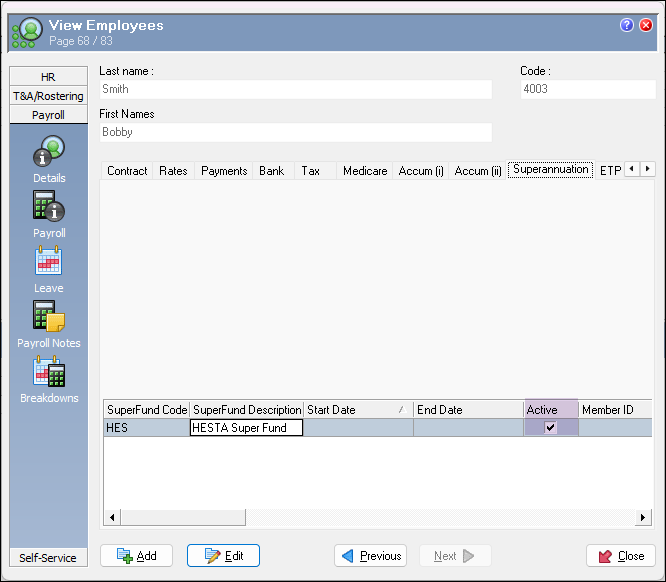
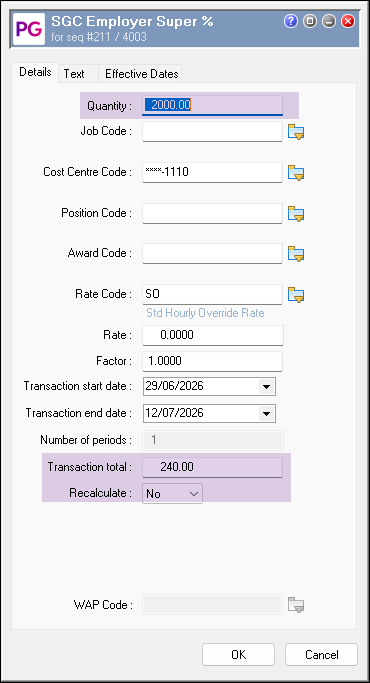
The example below shows how to process the payment. The transaction amounts were:
-
Allowance code: 500
-
Quantity: 2000.00
-
Total Amount : 240.00
To process the payment:
-
Open a new Manual Pay.
-
Go into Transaction view and select the manual pay just opened.
-
Go to the employee and add allowance code 500.
-
Add the Quantity as: 2500.00
-
Add the Total Amount as: 240.00
-
Change Recalculate to NO.
-
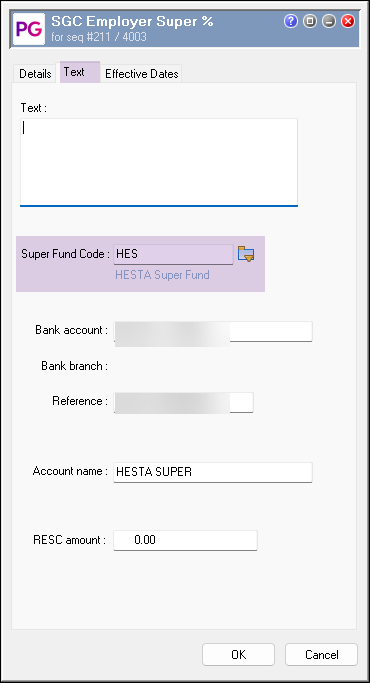
Go to the Text Tab and ensure the Super Fund code is now attached.
-
Press OK to save.
-
Process and close the manual pay.
Once any adjustments are completed, you will need to send the relevant STP Submissions which can be done via your usual STP Submissions process.