
This article will take you through the steps for working out an Available leave balance as at the close of a historical period.
This will assist with doing reconciliations on leave balances.
Instructions
In these instructions, we will use Microsoft Excel to complete the calculations using the data from the employee’s record in PayGlobal.
In the first example, we will look at the Annual Leave tab.
-
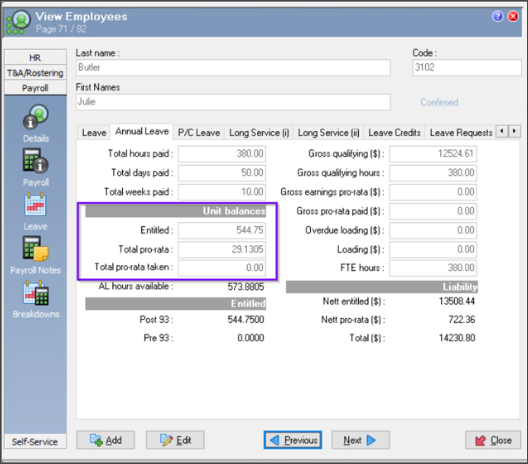
In PayGlobal, go to the employee record (Payroll > Leave > Annual Leave)
-
In the Unit balances section, click in the Entitled field
(in the NZ database this field is called Outstanding) -
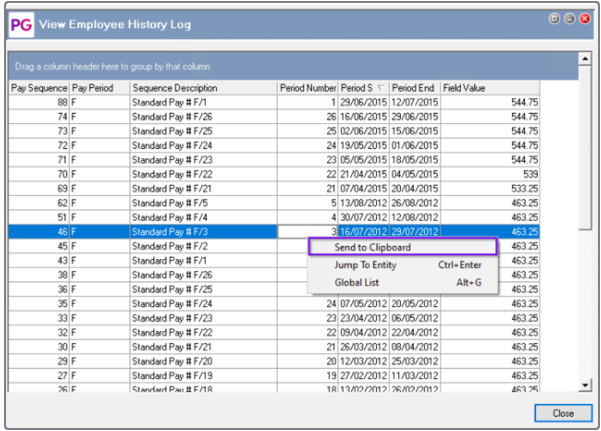
Press ‘F5’ on your keyboard
All the balances per closed pay will be displayed.
-
Right-click on the data
-
Select ‘Send to Clipboard’. This copies the data from this Employee History Log.
-
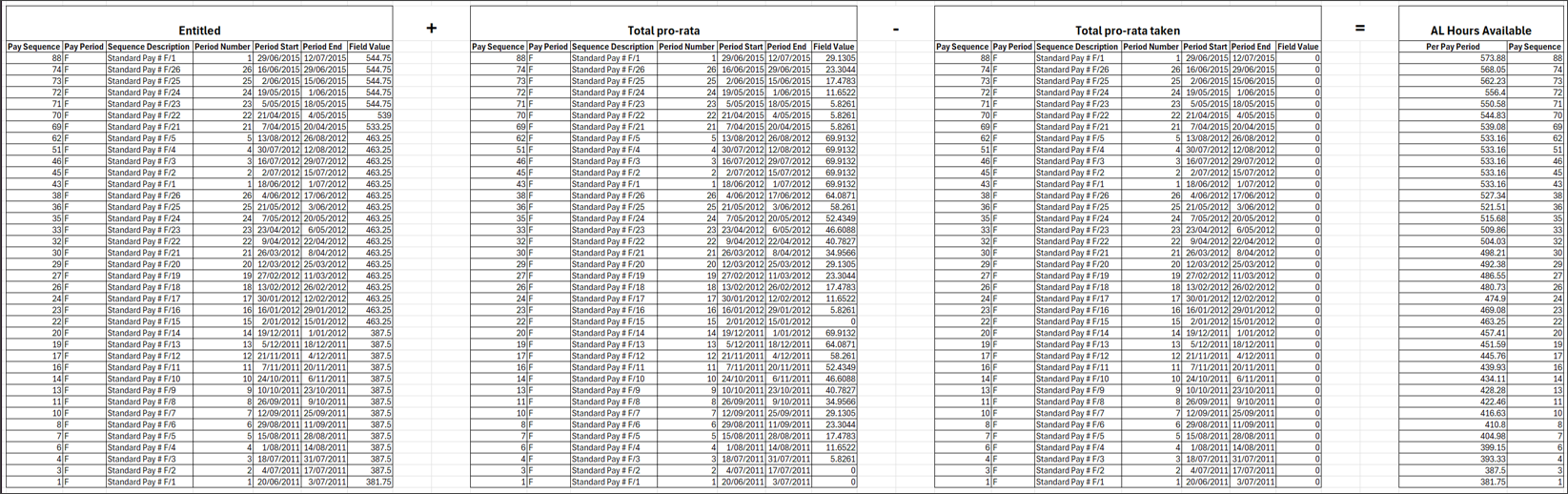
Paste the copied data in an Excel File.
-
Click ‘Close’
-
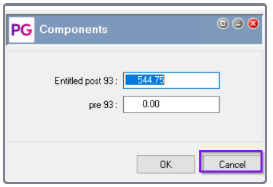
Click in the next field (Total pro-rata) in PayGlobal. You will see the Components pop-up. You can click 'Cancel’.
-
Press ‘F5’ on your keyboard.
All the balances per closed pay will be displayed.
Follow steps 4 till 7. -
Click on the next field (Total pro-rata taken).
-
Follow steps 3 till 7.
-
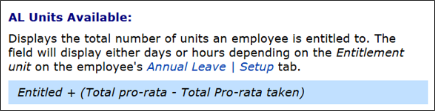
The formula for the AL Hours Available is

Next, we will follow the same process for Personal, Carers or Sick Leave
-
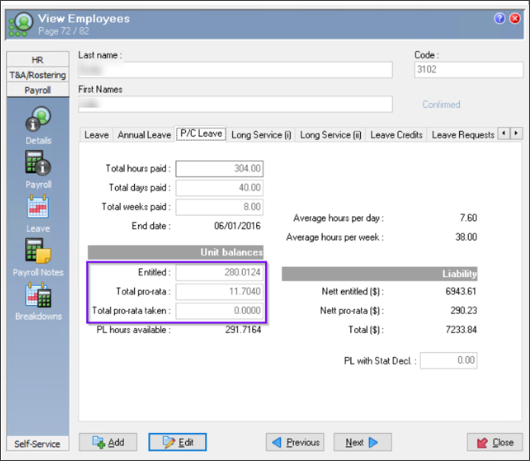
In PayGlobal, go to the employee record (Payroll > Leave > P/C Leave)
-
In the Unit balances section, click in the Entitled field
(in the NZ database this field is called Outstanding) -
Press ‘F5’ on your keyboard
All the balances per closed pay will be displayed.
-
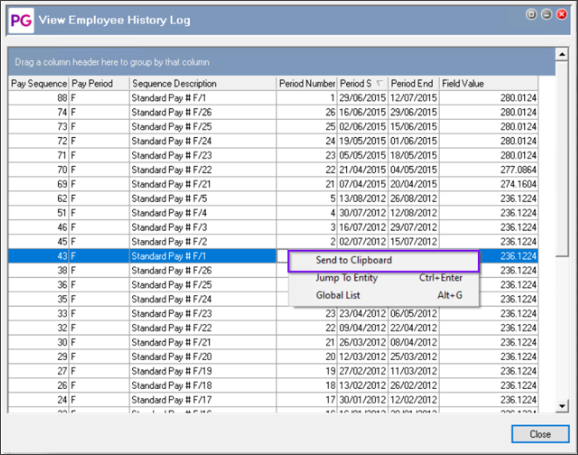
Right-click on the data
-
Select ‘Send to Clipboard’. This copies the data from this Employee History Log.
-
Paste the copied data in an Excel File.
-
Click ‘Close’
-
Click in the next field (Total pro-rata).
-
Follow steps 3 till 7.
-
Click on the next field (Total pro-rata taken).
-
Follow steps 3 till 7.
-
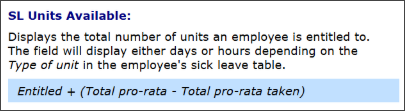
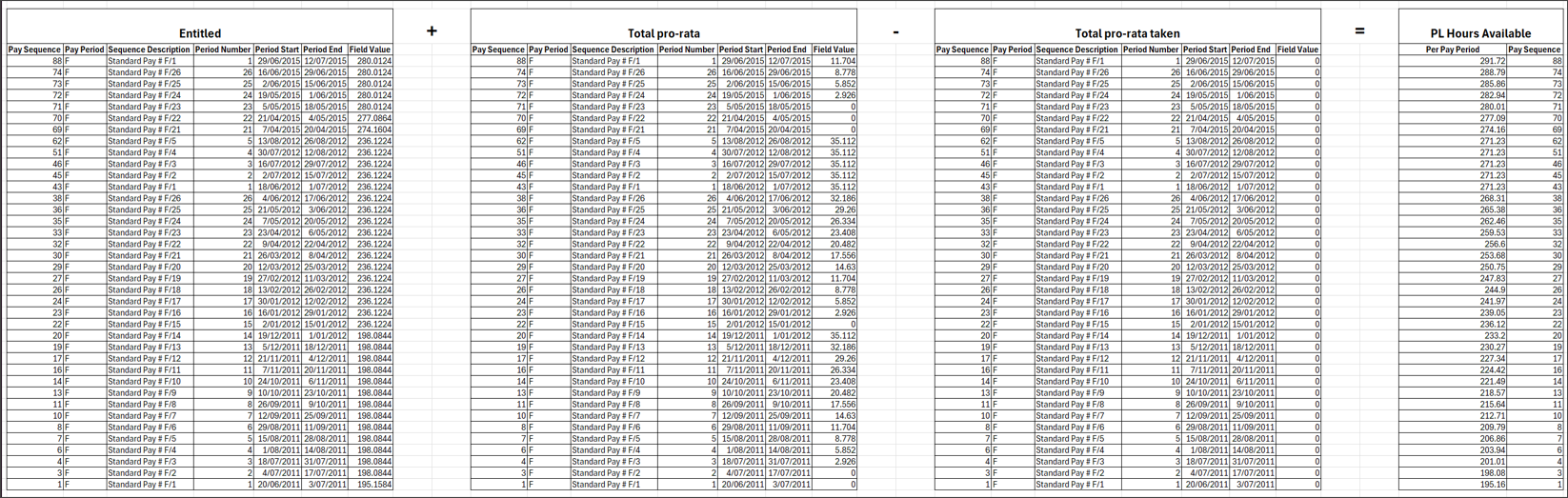
The formula for the PL Hours Available is
Related articles
Employees - Annual Leave (Aus)