
When an employee takes Annual Leave, the rate paid depends on whether the leave is being deducted from their Outstanding Balance or their Accrued Balance, or whether the employee has taken Parental Leave in the previous 12 months.
This guide explains how MYOB PayGlobal calculates the Outstanding Annual Leave rate and how to troubleshoot discrepancies you may see for an employee.
Overview
-
The Outstanding Annual Leave rate is derived from User Defined Accumulator (UDA) records and the employee’s Annual Leave table settings.
-
A Rate Rule typically compares Rate Code A (for example, a 52‑week average rate) and Rate Code B (for example, Ordinary Hourly rate) with a Greater of operator to choose the higher amount.
-
Depending on your setup, calculations may also reference the 4‑Week Ordinary average.
Step-by-step: Identify how the rate is calculated
-
Confirm the rate as shown on the employee record
-
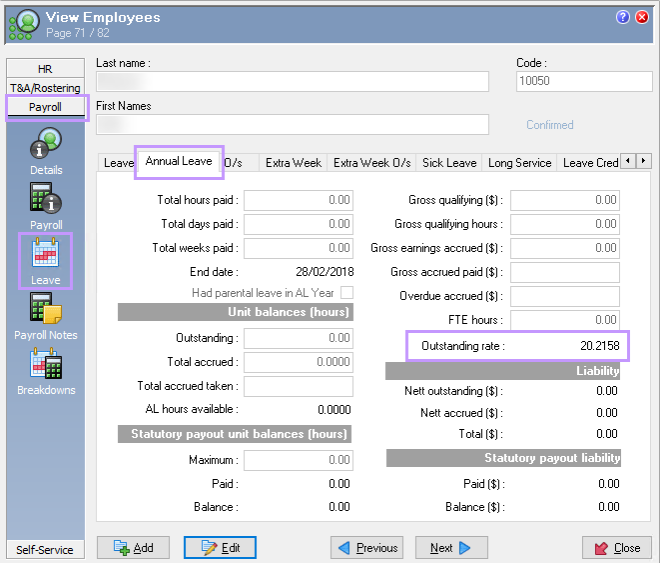
Go to the employee record: Payroll > Leave > Annual Leave tab.
-
Note the current Outstanding rate displayed:
-
Open the employee’s Annual Leave table
-
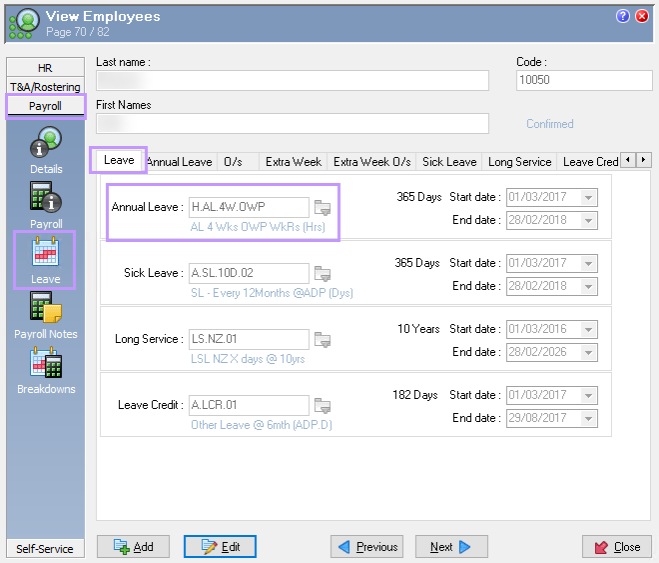
Go to Payroll > Leave > Leave tab.
-
Click the Annual Leave field and press Ctrl+Enter to open the Annual Leave table:
-
Inspect the Outstanding rate rule
-
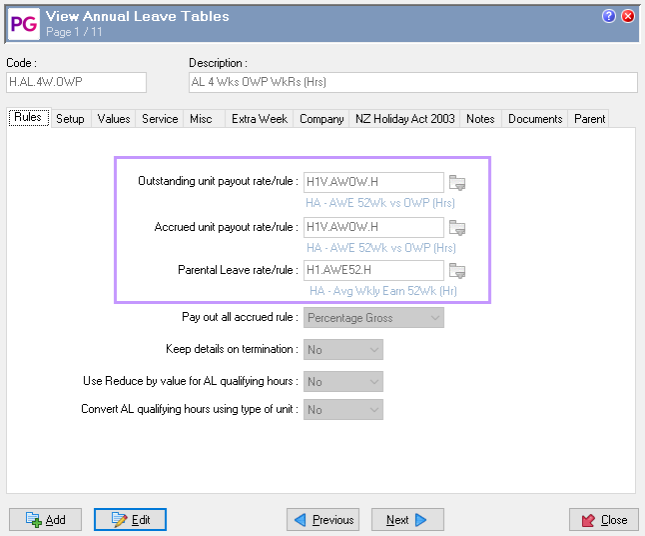
In the Annual Leave table, locate Outstanding unit payout rate/rule
-
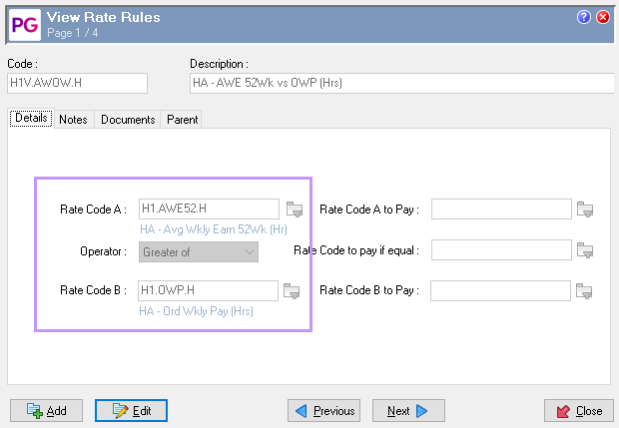
Click this field and press Ctrl+Enter to open the Rate Rule:
-
On the Details tab, review:
-
Rate Code A (often a 52‑week average), operator Greater of, and Rate Code B (often the Ordinary Hourly rate).
-
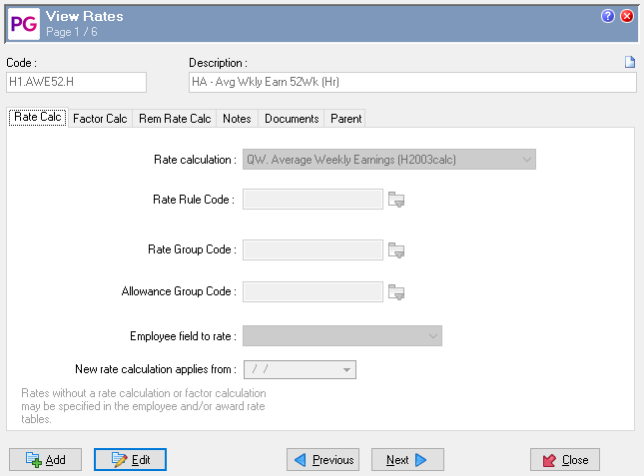
For each Rate Code, click into it and press Ctrl+Enter to open its definition and check the Rate calculation used:
-
-
Some Rate Codes may reference a Rate evaluation that also uses the 4‑Week Ordinary average.
4. Review the Rate calculation definition in Help
-
Open PayGlobal’s Online Help and look up topic 2093 (available here) to see:
-
The list of rate calculations (for example, “QW. Average Weekly Earnings (H2003calc)”).
-
Which UDA breakdowns each calculation uses and how they’re applied.
-
To Map UDA codes to names (if needed), go to Administration > Modify Company Settings > Payroll > Processing > Holidays Act tab.
-
Use this to confirm which UDA code corresponds to each UDA name referenced in the calculation.
-
Gather the employee’s UDA breakdowns
-
Open the employee record: Payroll > Breakdowns.
-
Right‑click the grid and choose Send to Clipboard, then paste into Excel to sort and total the values more easily.
-
Make sure you include both the dollar amount and corresponding time worked UDAs for the relevant date ranges (for example, the last 52 weeks for a 52‑week average).
-
More information regarding this can be found in our Exporting and Sorting User-Defined Accumulator (UDA) Data page.
More information regarding User-Defined Accumulators (UDAs) can be found in our How is User-Defined Accumulator (UDA) data generated? page.
Example: 52‑week average vs Ordinary Hourly rate
-
For a rule comparing 52‑week average to Ordinary Hourly rate with Greater of:
-
Calculate the 52‑week average per Help topic 2093. For “Q. Average Hourly Earnings (H2003calc)”, sum the last 52 weeks of the relevant Average Earnings 52 UDA amounts and divide by the sum of the corresponding Average Earnings 52 (hours) UDA hours.
-
Compare the resulting 52‑week average rate to the employee’s Ordinary Hourly rate.
-
The Greater of the two becomes the Outstanding Annual Leave rate (rounded as per your system’s rounding rules).
-
-
Example outcome (illustrative): a 52‑week average of 37.65375 vs an Ordinary Hourly rate of 33.6538 results in an Outstanding rate of 37.6538 after rounding.
Troubleshooting
If the rate is not calculating as expected, we recommend checking the following:
-
The rate calculations shown in the Rate Rule match what you expect for the employee’s Annual Leave table.
-
UDA breakdowns include the correct number of records and the correct date ranges (for example, a full 52 weeks for 52‑week averages).
-
Each period has both dollar amount and the corresponding time worked UDAs so averages are calculated correctly.
-
There are no missing or unusually large dollar or hour entries that could distort the average.
Important notes
-
MYOB PayGlobal can explain how the product calculates leave and how to configure your settings. We are unable to provide legal assurances of compliance; interpretation and application of leave legislation depends on your business circumstances.
-
For legal or compliance advice, please contact your legal advisors, your industry association, or the Labour Inspectorate at the Ministry of Business, Innovation and Employment (NZ): call 0800 20 90 20 or visit http://www.employment.govt.nz .
The screenshots referenced in this guide were originally captured from a test database and did not include real employee data.