
Use this checklist when an employee’s timesheet cannot be generated or does not appear in Employee Self Service (ESS).
1. Confirm the symptom
Identify whether the employee is:
-
Not listed in Timesheet Admin.
-
Listed as Not generated.
-
Showing an error during generation.
-
Showing a notification but no timesheet.
-
Showing an existing or partially created timesheet.
These symptoms can have different causes.
2. Check the employee’s Timesheet Settings
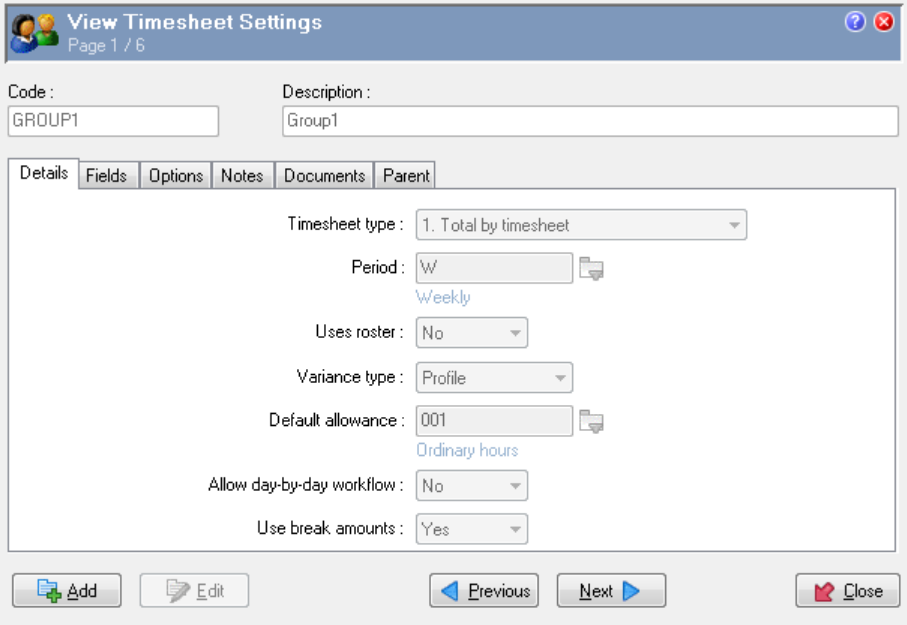
In PayGlobal, go to the employee’s Self-Service > Timesheets settings and confirm that:
-
A Timesheet Settings record is attached to the employee.
-
The record covers the affected pay period.
-
The Timesheet Type is correct:
-
0 – No timesheets -
1 – Total by timesheet -
2 – Timebands by timesheet
-
An employee without a Timesheet Settings record, or with Timesheet Type 0, cannot use ESS timesheets.
3. Check the employee’s WAP and appointment
Confirm that the employee has:
-
An active and default appointment.
-
A valid WAP.
-
No closed date on the WAP.
-
The required ESS Security Profile assigned to the WAP.
-
The correct manager and employee structure.
A closed WAP date can prevent the employee from appearing as Not Generated.
Also check for invalid employee dates, such as a start date later than the end date.
4. Check the pay period and calendar
Verify that:
-
The correct period is being generated.
-
The period calendar includes the affected dates.
-
There are no gaps between pay periods.
-
The employee is attached to the correct pay group or period.
A gap in the period calendar can prevent timesheet generation.
5. Check for an existing timesheet
Search for an existing timesheet or workflow record for the same employee and date range.
This is particularly important when:
-
The employee’s Timesheet Settings were changed.
-
The employee changed from fixed-term to casual, or vice versa.
-
A timesheet was partially created.
-
A previous timesheet covers some, but not all, of the required dates.
Existing timesheets can remain associated with the previous Timesheet Settings and prevent regeneration. Do not delete an existing record until submitted leave, approvals and timesheet data have been checked.
6. Check the generation method
Manual generation
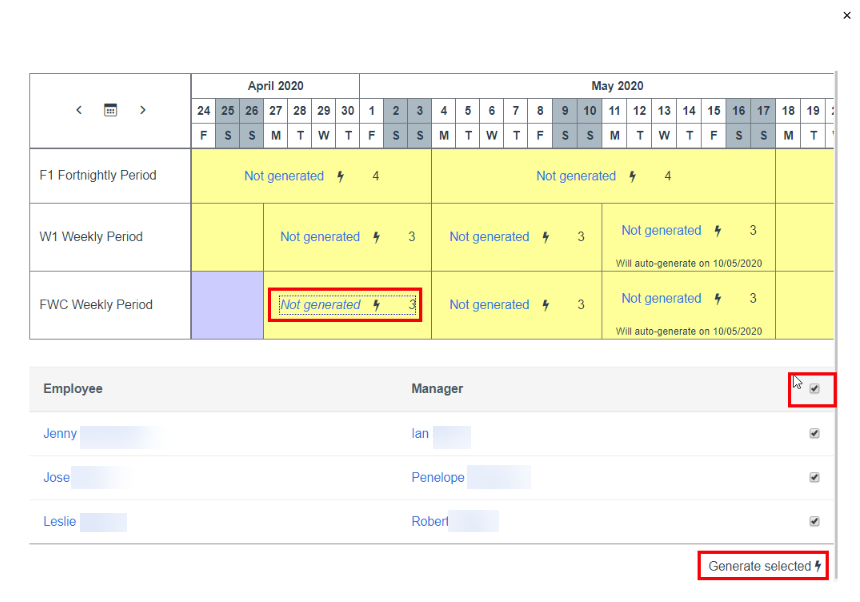
If the employee is listed as Not generated:
-
Log in using the Timesheet Admin role.
-
Select the employee and required period.
-
Click Generate Selected.
-
Refresh the calendar and confirm the status.
Automatic generation
If the timesheet is supposed to be automatically generated or you are getting further errors when generating, please lodge ticket with PayGlobal Support.