
Several reasons can cause an ESS calendar to appear greyed out to an employee or group of employees. Please see scenarios listed below.
-
Period Calendar assigned to an employee has not been rolled over to the greyed-out dates. This issue may affect more than one employee.
-
Navigate to the period assigned to the employee profile.
-
Open the employee record and go to Payroll / Payroll tab.
-
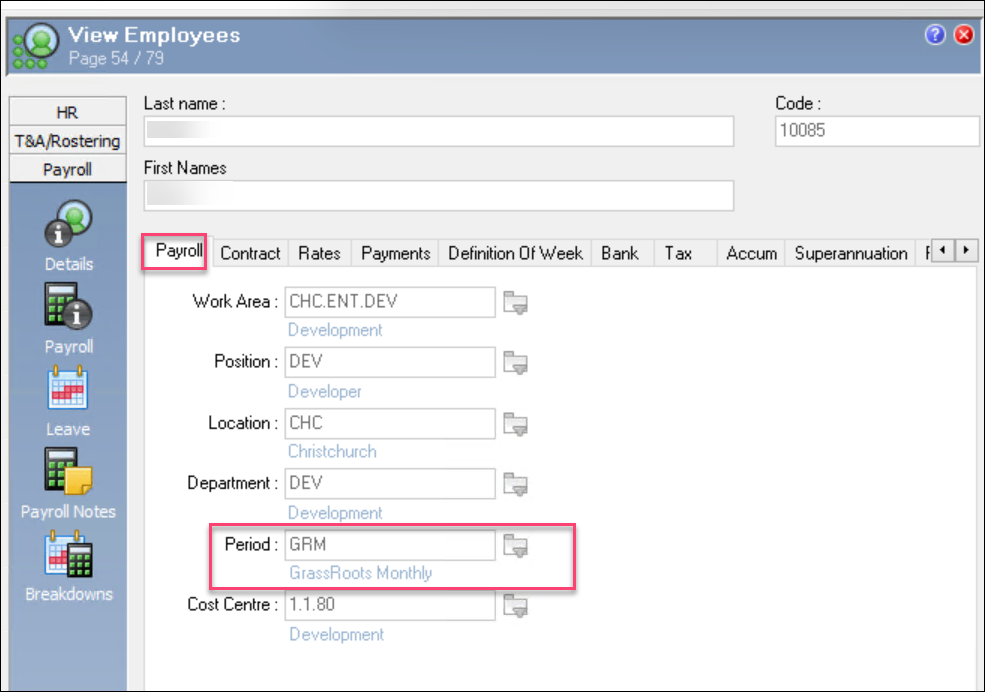
-
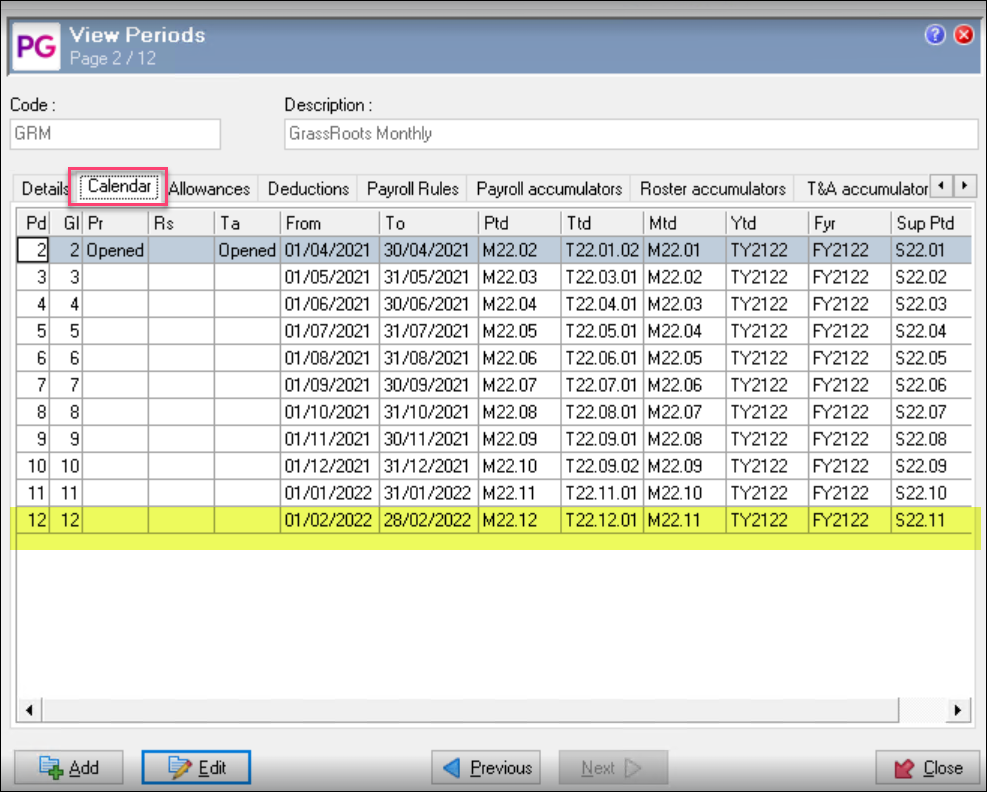
Press Ctrl+Enter on the Period and check that the calendar has been rolled over to the expected dates.
-
If the calendar dates are missing, it will need to be added either manually or through the Period Calendar Creation Tool. Refer to the PayGlobal Help file click here or the Period Calendar Creation Tool Manual click here
Period Calendar creation/roll over is usually included in the year end procedures done by consultants and out of PayGlobal Support’s scope. A consultant will need to be engaged if you need further assistance on this step.
-
Roster / Profiled settings making “wrong days” available based on the employee’s leave request settings.
To check the leave request settings of an employee, navigate to the Employee Profile> Leave>Leave Request Settings. Ctrl+ Enter on the Leave Request Settings and check the schedule source.
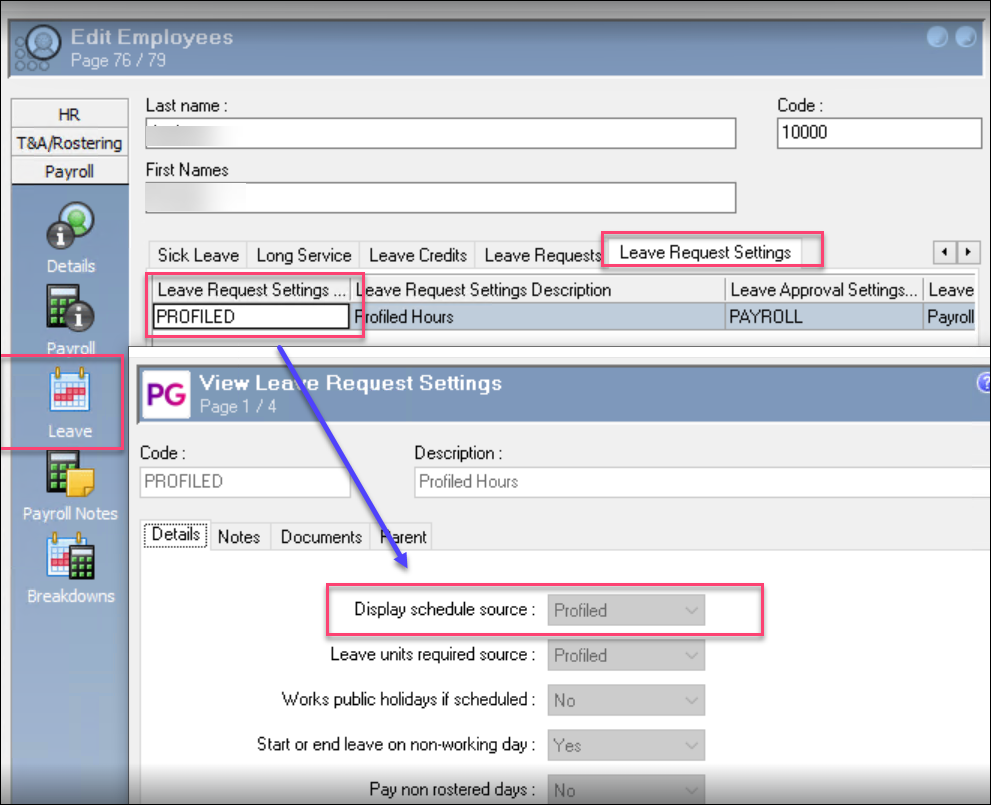
For issues where the wrong days are unavailable in the ESS calendar, please check the following:
-
If Leave Request settings are Roster-based:
-
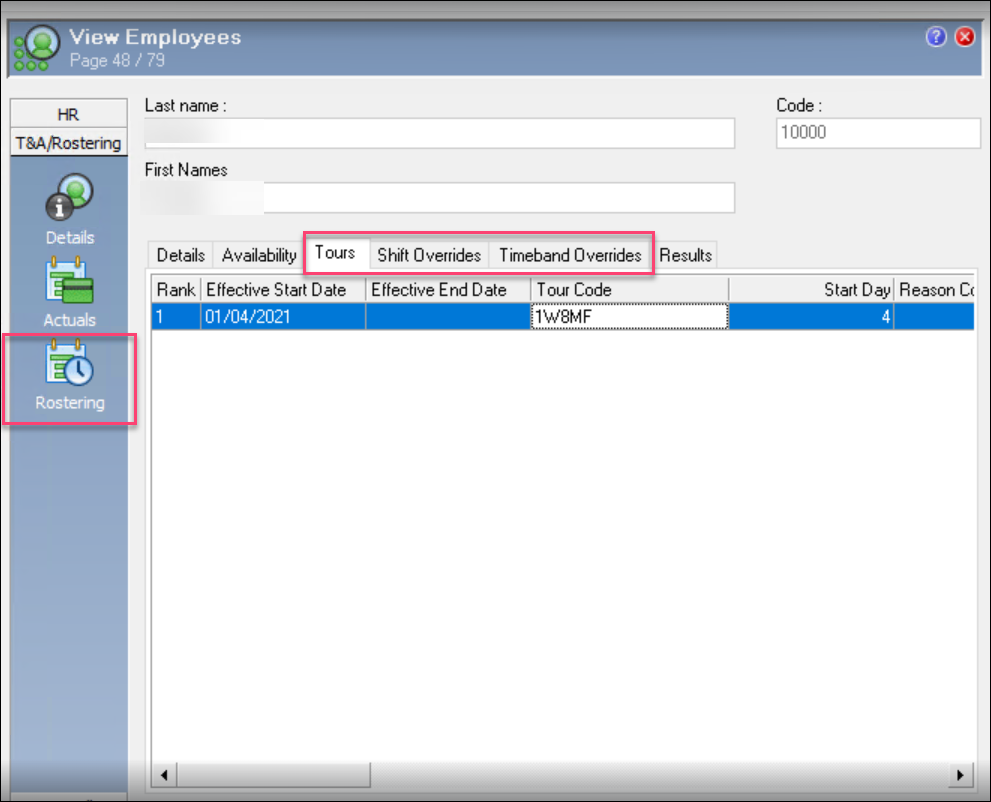
Check the roster is set up correctly under Tours, Shift Overrides, or Timeband Overrides and starts on the correct date/day.
-
Confirm shifts exist and each shift has start and end times.
-
Missing or misaligned shifts can cause days to be unavailable or appear incorrectly.
-
-
If Leave Request settings are Profiled:
-
Confirm the employee has valid Profiled hours set up.
-
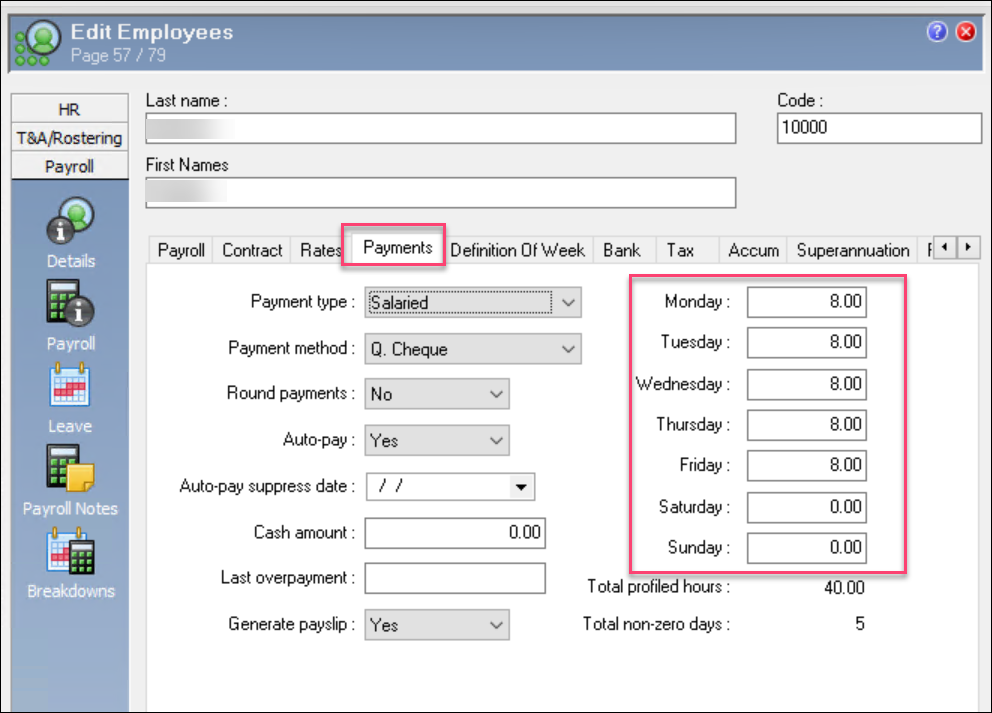
If the pattern of greyed‑out days matches missing roster shifts or profiled hours, correct those first and then re‑test in ESS.
-
Specific dates are Holidays based on the Employee’s Holiday group.
-
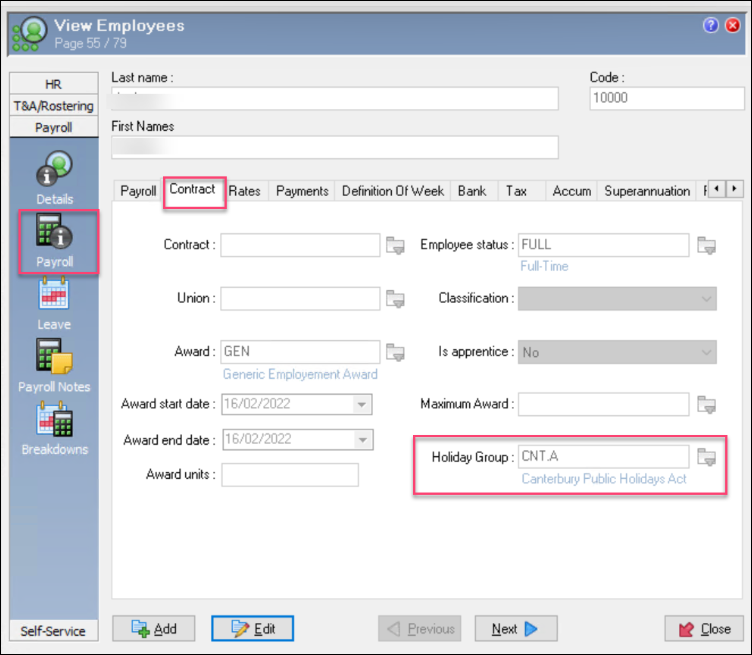
Navigate to the employee profile> Contract>Holiday Group.
-
Press Ctrl+Enter on the Holiday Group> Holidays Tab and check if the greyed-out dates are set as a holiday under the holiday dates.
-
Employee Timesheets has been approved for the period.
Check with the employee’s manager or Timesheet admin that the ESS timesheets for the period has not been approved. Approved timesheets for the period blocks the employee calendar
-
The leave being applied is set too far in the future.
By default, the maximum time an employee is able to apply for leave is 365 days from the current date. Check with PayGlobal Support as this setting is in the backend workflow design tool.