
Follow the steps below to add the blue hint message that appears at the top of a page in ESS.
Note: We highly recommend doing this in Test first if you have not done this before.
-
Log in to the ESS Admin site. You can refer to Logging into ESS Admin site - instructions
-
In the left‑hand menu, go to:
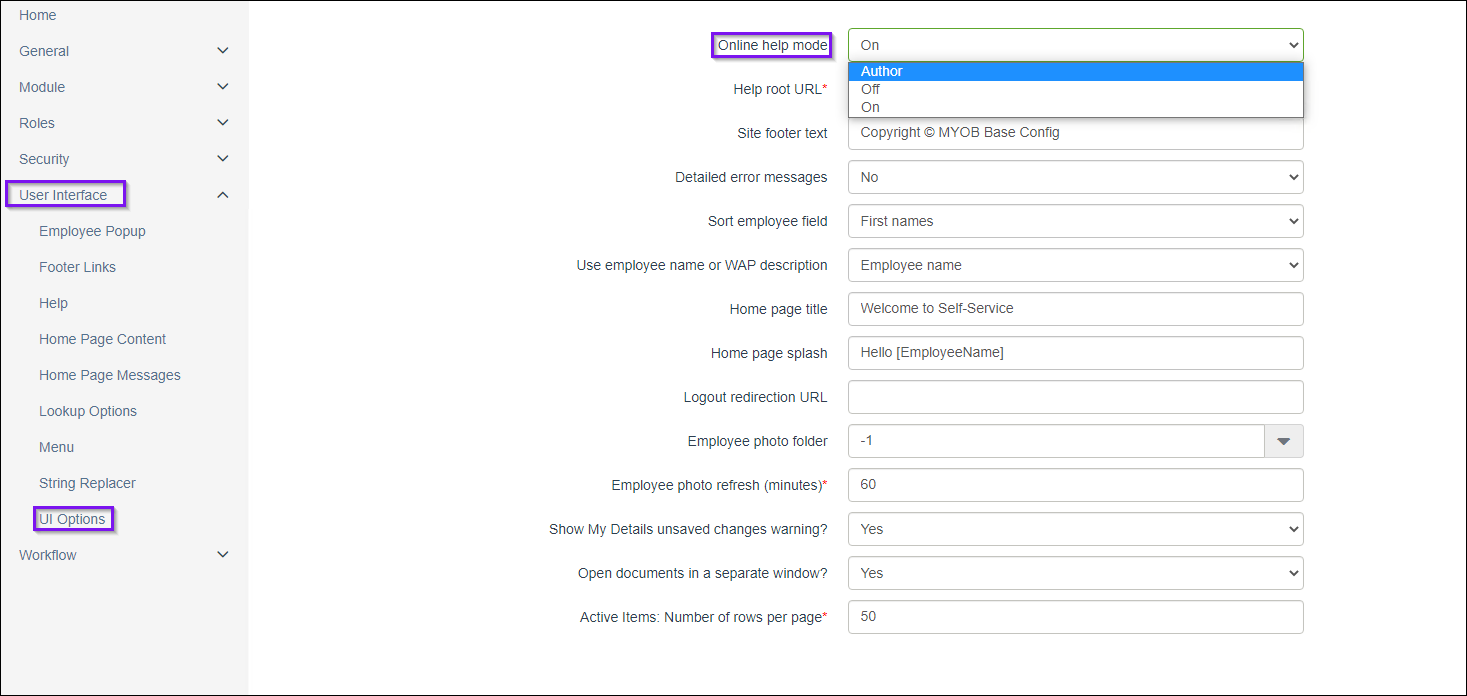
User Interface > UI Options. -
In the Online help mode field, change the value to Author taking note of the existing value (Usually On):
-
Click Submit.
-
A ribbon will appear at the top saying Configuration changes made.
Click Save and Apply so the change takes effect:

-
Open the regular ESS site in a new browser tab or window.
-
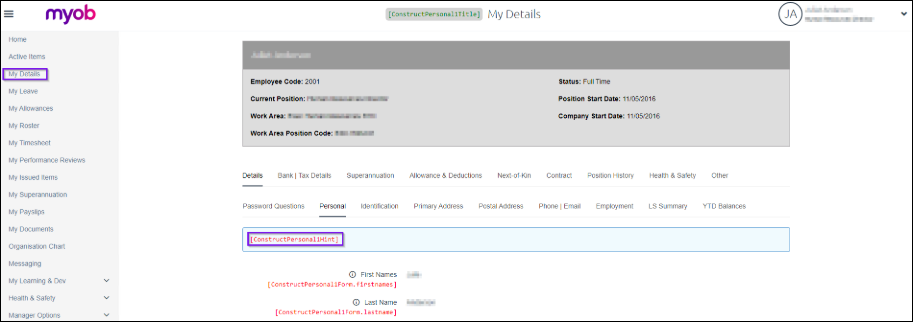
Go to the required page in ESS and refer to the hint text that is now showing. In this example I am adding a hint to the Personal tab shown on My Details > Details.
Note the current hint text you want to change or use this as a reference for your new message:
-
Go back to the ESS Admin site.
-
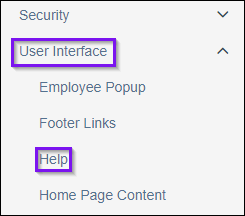
From the main menu, go to:
User Interface > Help:
-
Scroll to the bottom of the Help list and click Add help key:
-
Enter the appropriate details using the Help Key that you previously noted, then click Submit to save your new Hint:
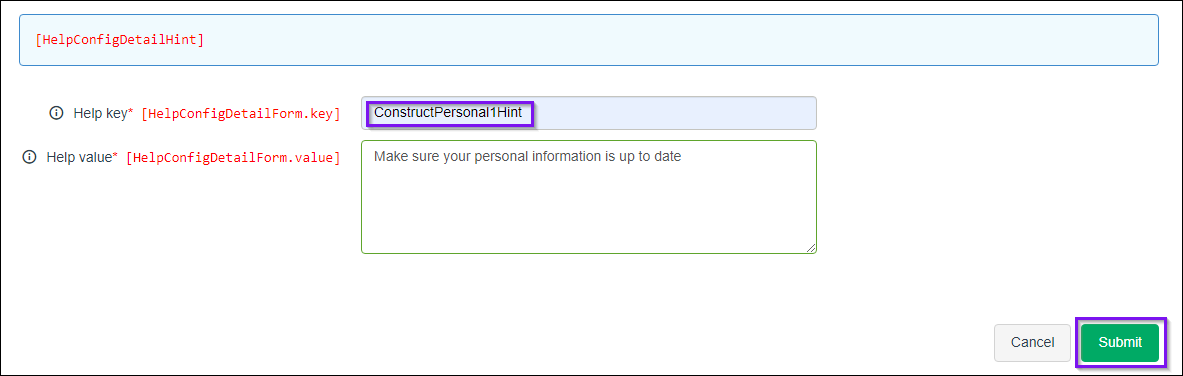
-
At the top of the screen, click Save and Apply again so the changes are pushed through to ESS.
-
Return to the regular ESS site and refresh the page you updated.
Confirm that your new message now appears in the blue ribbon:
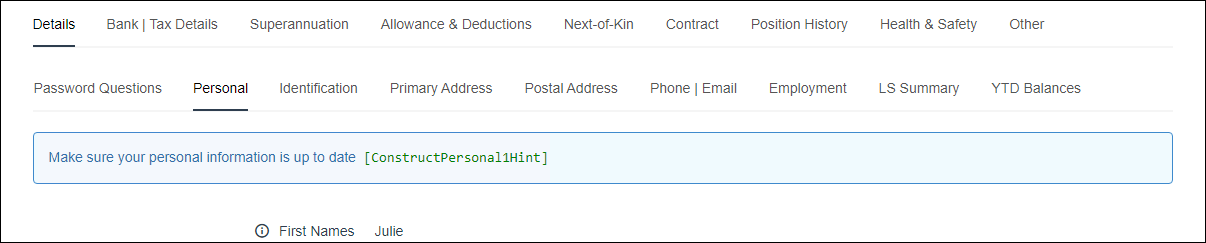
-
When you have finished updating the help message, go back to the ESS Admin site, return to User Interface > UI Options, and change the Online help mode field back from Author to your original setting.
Click Submit, then click Save and Apply to confirm the change. -
The page should now look like this:

Notes:
-
If the message does not appear after refreshing, try clearing your browser cache or testing in a private/incognito window.
-
You can also refer to the above instructions if you are wanting to modify an existing hint by turning on author mode to locate the name of the Help Key or searching for the existing hint under User Interface > Help