
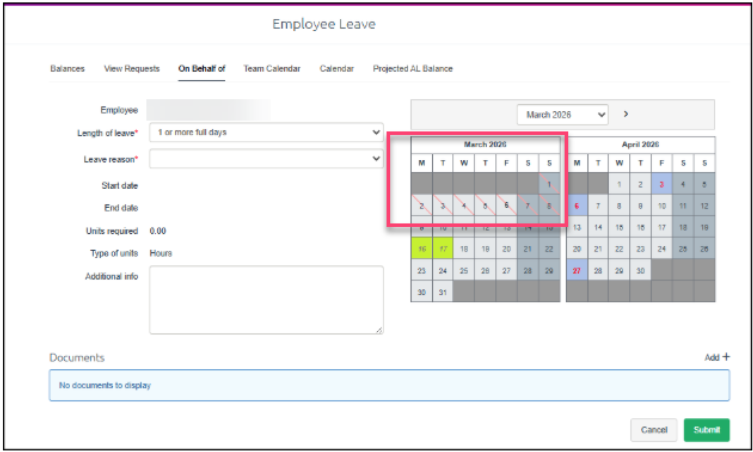
ESS Calendar crossed out generally means that the dates are unavailable for leave application that can be caused by the following configuration issues:
-
Period covering the affected dates have not been added
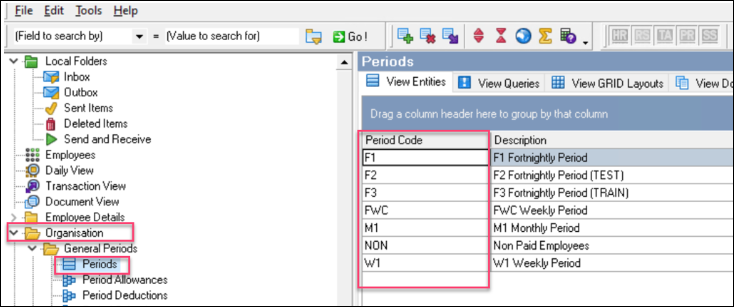
Navigate to Organisation> General Periods>Period and locate the period the affected employee/s is in.
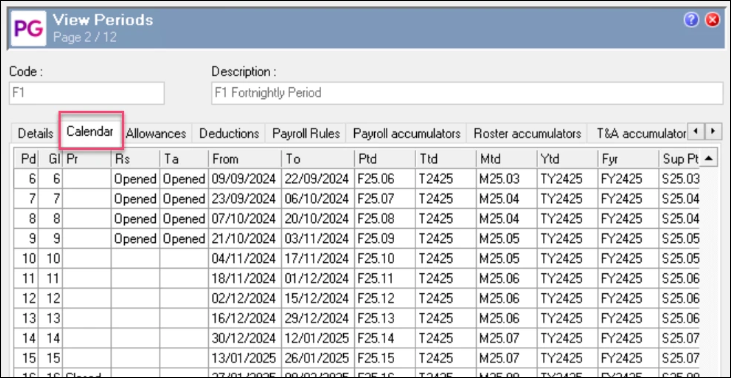
Click on the Calendar tab and ensure that there are period entries covering the dates in question. If this is missing, it will need to be added by the Payroll Admin or a consultant engaged to roll the calendar entries
-
ESS timesheets have been approved/finalised
If the company is using timesheets, the affected employee/s timesheets may have been approved/finalised.
The Timesheet Admin will need to delete and regenerate the timesheet
-
Leave Request Settings (Roster/Profiled)
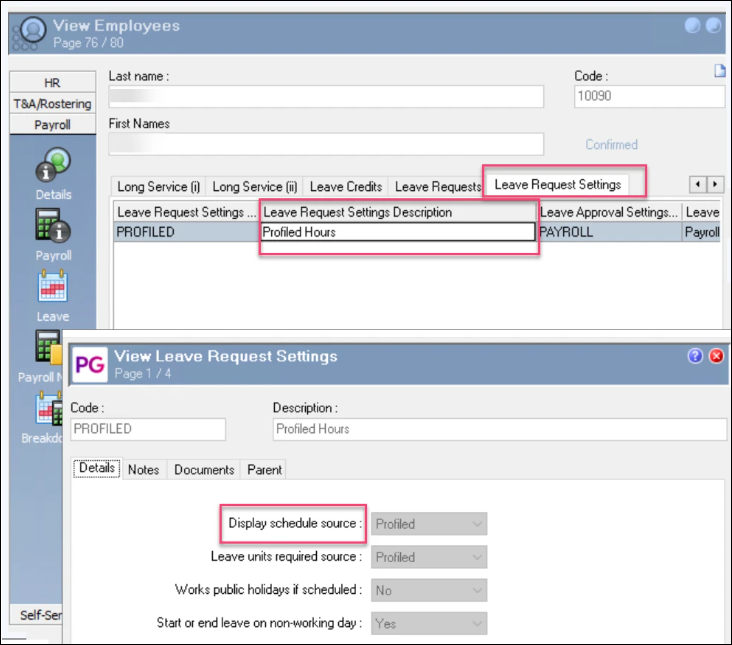
In the Employee Profile, go to Leave > Leave Request Settings and Ctrl+Enter on Leave Request Settings to check the Schedule Source (Roster or Profiled).
If Roster‑based:
-
Check the Roster (Tours, Shift Overrides, Timeband Overrides).
-
Ensure shifts exist for those dates and each shift has proper start and end times. Missing or misaligned shifts can make days unavailable in ESS.
If Profiled:
-
Confirm the employee has valid profiled hours set up.
-
If the greyed‑out pattern matches where profiled hours are missing, fix the profile then re‑test ESS.
-
Holiday Group Dates prevents certain type of leave from being applied on these dates
Check the employee’s Holiday Groups and see if the date in question is a Public Holiday by going to Employee>Contracts > Holiday Groups
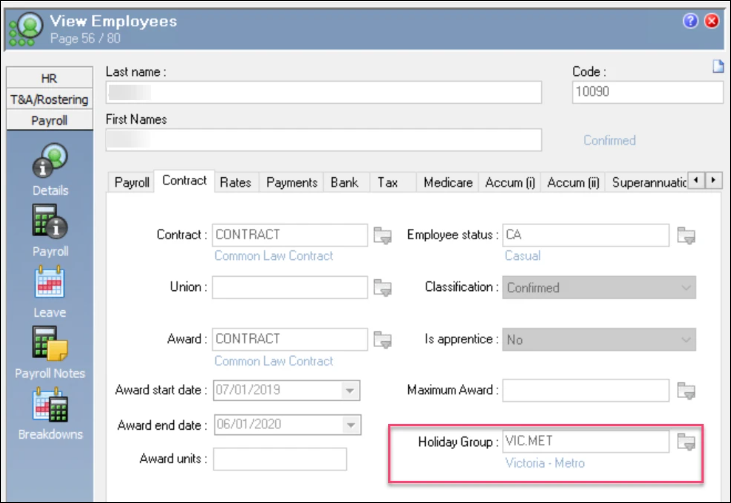
Press Ctrl+Enter on the Holiday Group, Locate the Date in question and check if it is a Public/Statutory Holiday
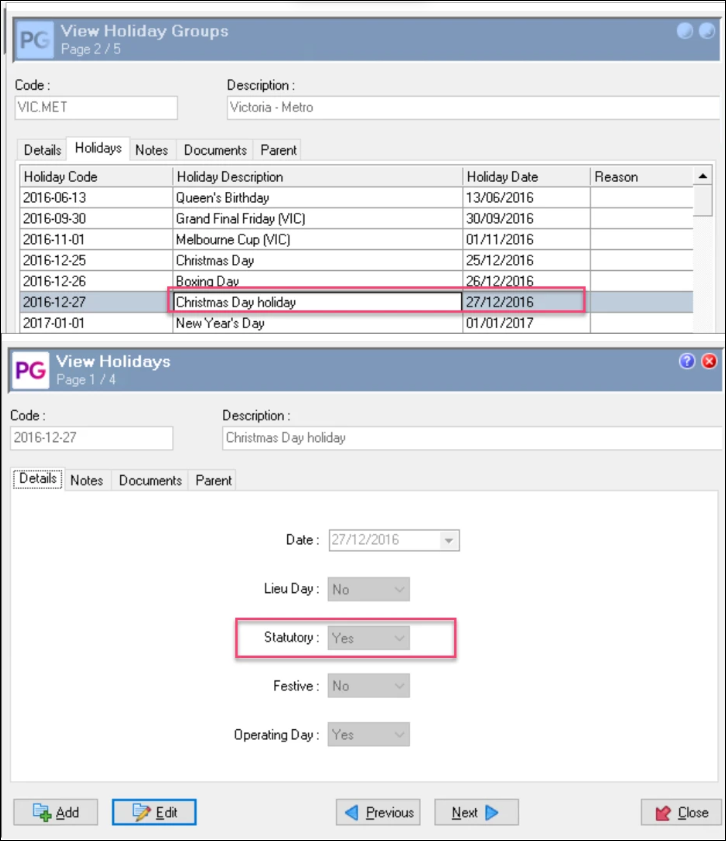
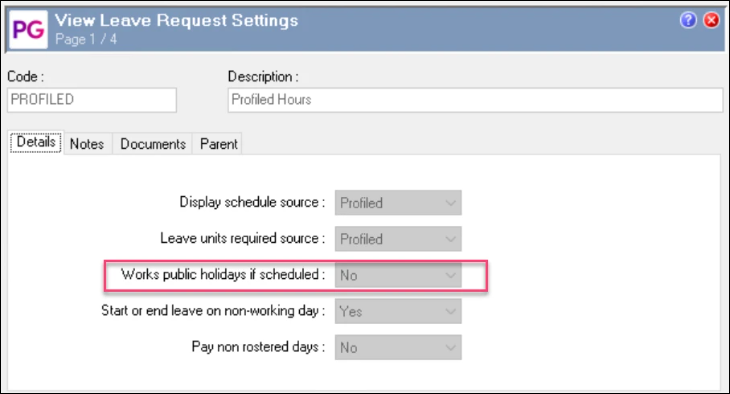
In the employee’s leave request settings (see step 3 above), check if the employee is allowed to work on a Public Holiday. If no, the employee will not be able to apply for leave on this date.
-
ESS configuration settings prevents leave application by the # days in the past or in advance
If the previous 4 reasons do not appear to explain the issue, please contact PayGlobal Support so we can check the back end settings