
This article provides instructions for adding the Employee MFA Setup menu item to a ESS Delegate role. This will ensure the menu item appears to anyone assigned as a delegate to a manager’s position.
Log into ESS Admin site
The first step is to log into the ESS Admin site. You can use the following instructions to login if you are new to the ESS Admin site.
Logging into ESS Admin or see video option: Logging into ESS admin website
Add Employee MFA Setup menu item
Next you add the menu item using the steps below.
-
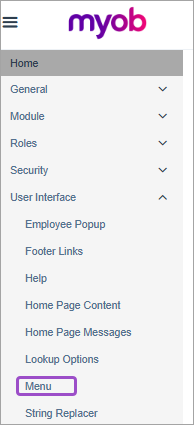
Expand User Interface, then Menu.
-
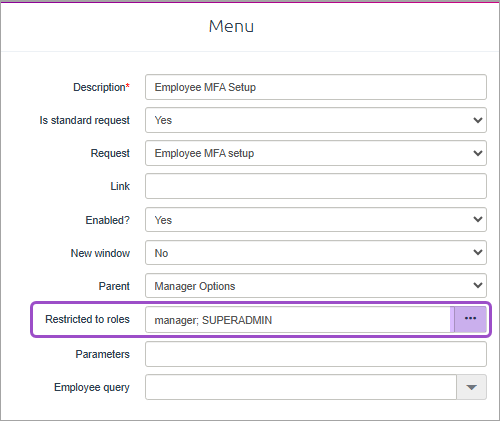
Click pencil edit button for Employee MFA Setup

-
Click on ellipsis (3 dots) for Restricted to roles field.
-
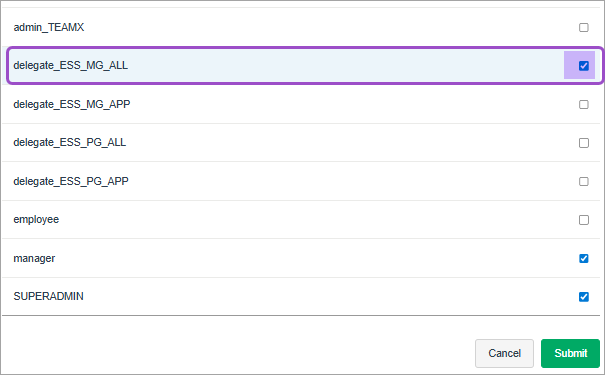
Tick one or more of the delegation roles you want to add menu item to.
-
Click Submit (twice).
-
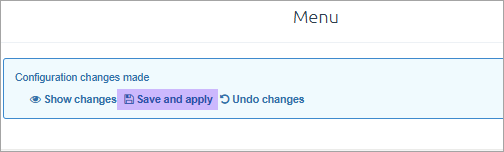
Click Save and apply at the top of the screen.
Add Module Security
Give the delegation access to the MFA Setup module.
-
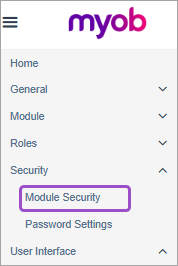
Expand Security, then Module Security.
-
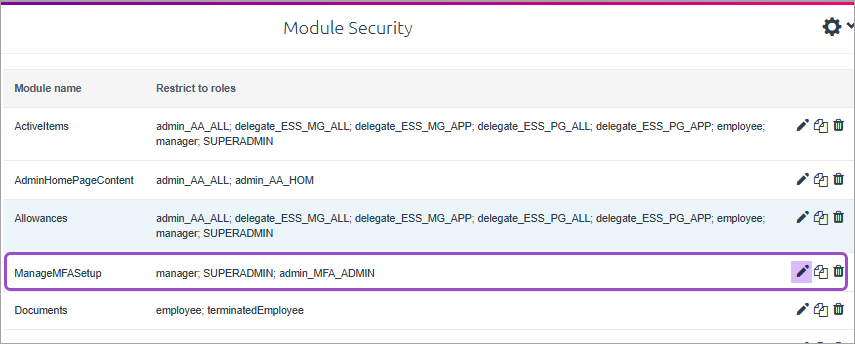
Click on the pencil edit button for ManageMFASetup module.
-
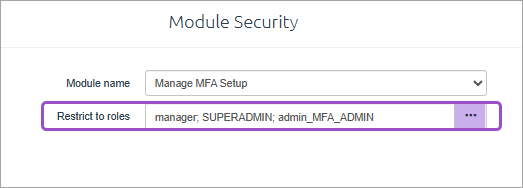
Click on ellipsis (3 dots) for Restricted to roles field.
-
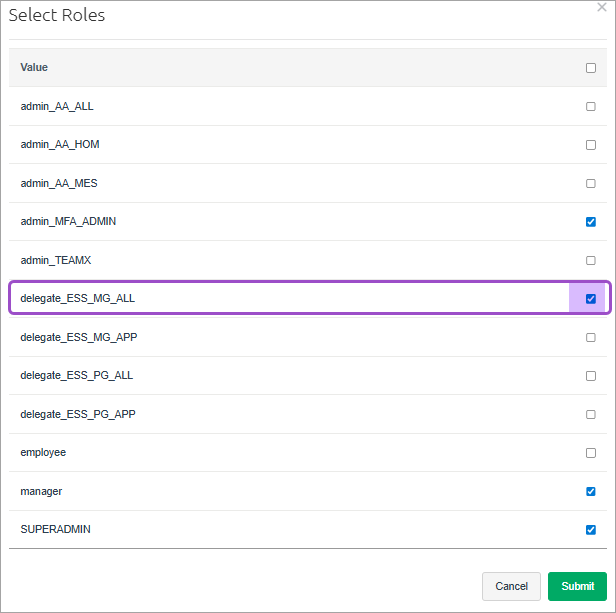
Tick one or more of the delegation roles you want to add.
-
Click Submit (twice).
-
Click Save and apply at the top of the screen.