
This article outlines the steps to assign an employee’s Work Area Position (WAP) to a Timesheet Admin role.
You may create new WAP for a new position from time to time and find that you cannot generate the timesheet for the employee assigned to it. If this new WAP requires the employee to submit a Timesheet, then you will need to follow the instructions below.
📘 Instructions
-
Log into your company’s ESS Admin site - ESS Admin Site Login Process
-
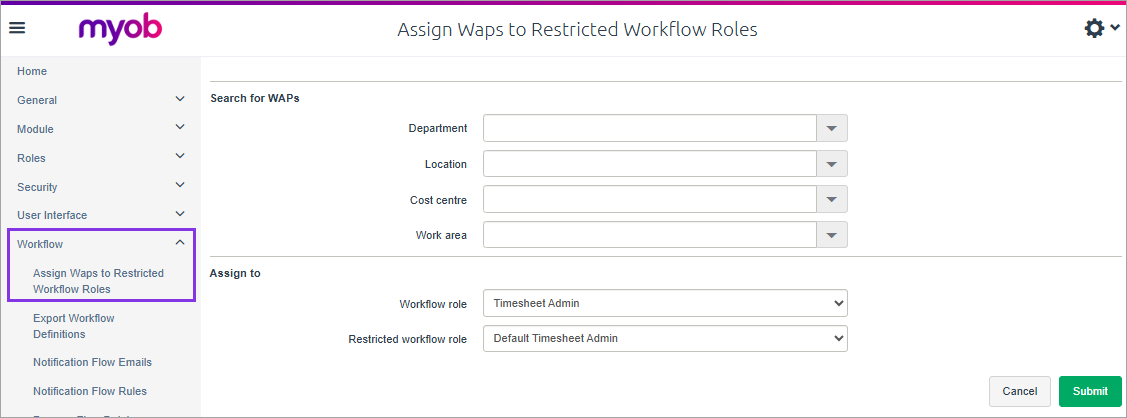
Expand Workflow from left menu and click Assign Waps to Restricted Workflow Roles.
-
The Search for WAPs area above allows you to filter the available WAPs.
If you don’t add a Department, Location, Cost centre or Work area to filter by, then all the company WAPS will be displayed at the next screen.
-
In the Assign to are below, leave the Workflow role as Timesheet Admin and select the Restricted workflow role that you want to assign the new WAP to.
-
Click Submit
-
Tick the WAP to transfer and click Submit.
A message will appear at the top of the screen - Selected WAPs have been assigned to restricted workflow role.
📋 Related articles
https://enterprise-support.myob.com/payglobal/ess-assigning-admin-roles-to-an-employee