
The instructions below show you how to update the Email template for Self Service Passwords reset from within PayGlobal.
From the PayGlobal application:
-
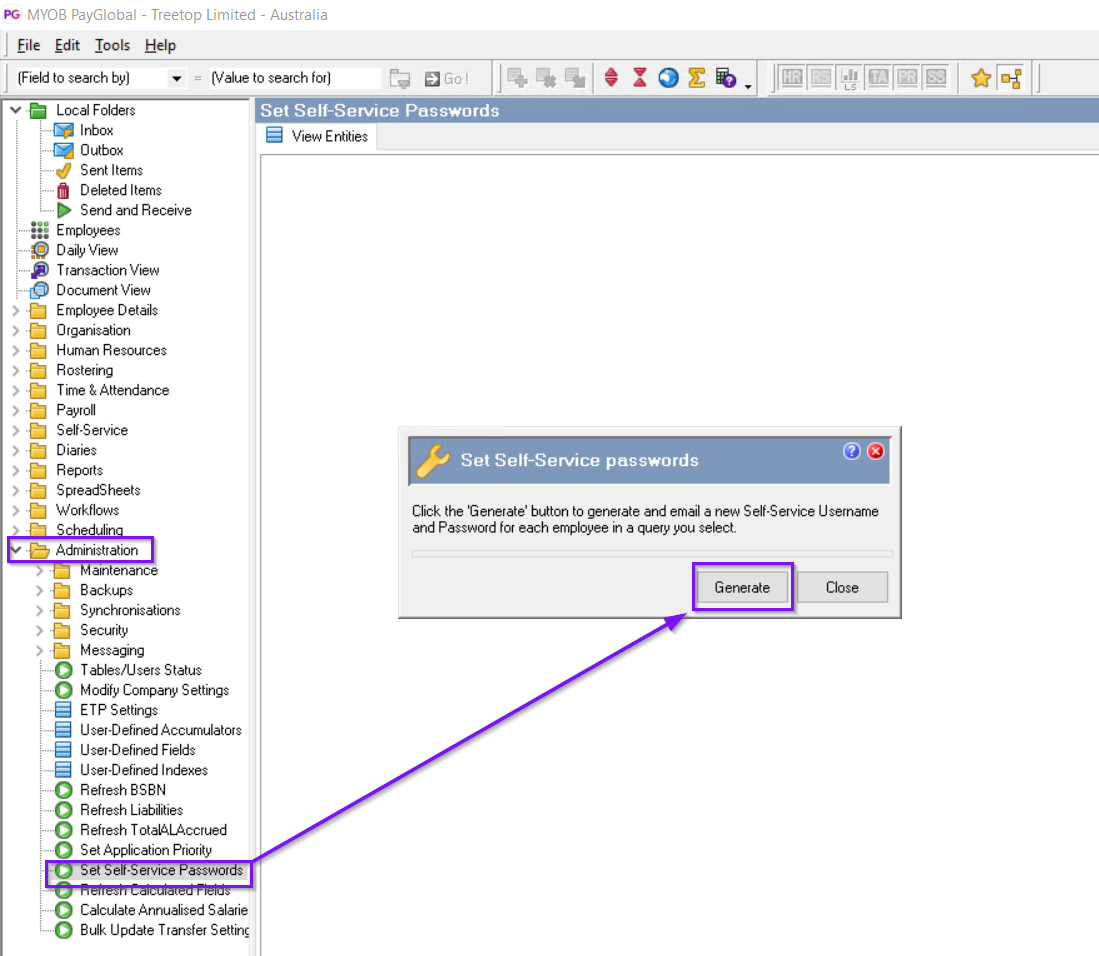
Go to Administration > Set Self-Service Passwords
-
Click Generate
-
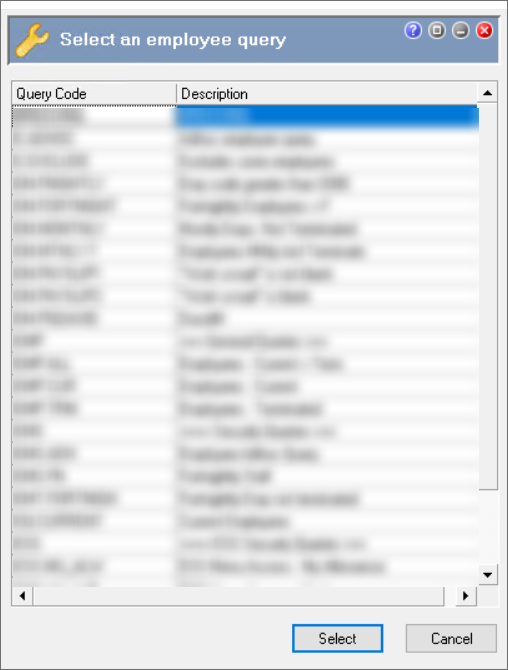
Select a query.
We recommend setting up a query with no employee. This is in case you accidentally finalise the process of setting the passwords at the end.
-
Click ‘Select’
-
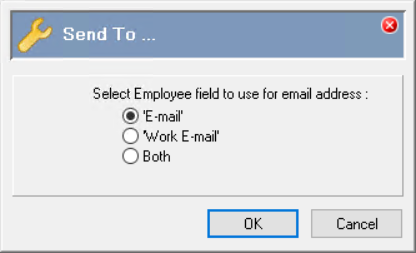
Select the Employe field to use for email address, then click 'OK' for Send To...
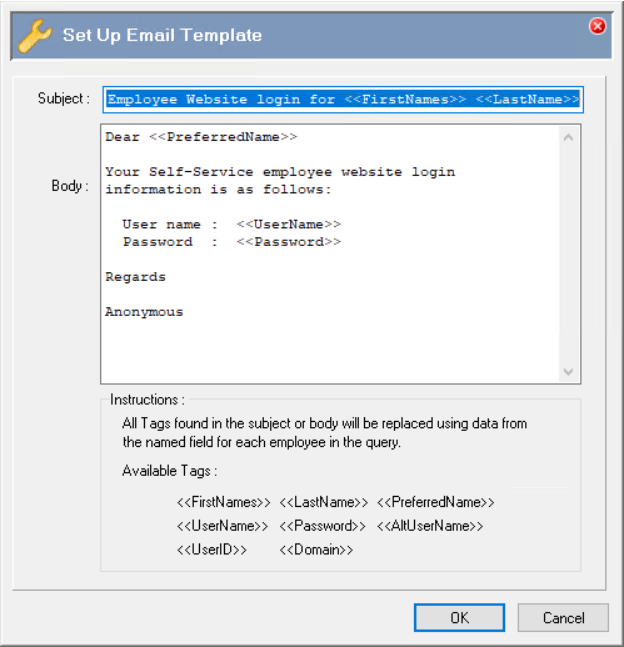
We do not recommend typing the changes directly in the Body as pressing Enter on the keyboard will either 'Cancel' or 'Ok' depending on what is highlighted at the bottom of the Set Up Email Template screen)
-
In Notepad or Notepad++, draft your message using the available tags listed in the instructions in the Set Up Email Template screen.
-
Select and copy the new text from Notepad.
-
In PayGlobal, click in the Body of the Set Up Email Template and 'Ctrl+V' to paste the new information.
-
Click ‘OK’
However, if you want to make changes to the content of the Body:
-
Click in the Body and 'Ctrl+A' to select all then 'Ctrl+C' to copy.
-
Paste this information into Notepad or Notepad++.
-
Make the changes.
-
Select and copy the new text from Notepad.
-
In PayGlobal, click in the Body of the Set Up Email Template and 'Ctrl+V' to paste the new information.
-
Click ‘OK’
Once the message is added to the Body, it will become the default message.