
Clearing Hung Reports in PayGlobal
This article explains how to:
-
Identify a stuck report in the Schedule Info window (F10).
-
Correctly cancel the report using Cancel Requested.
-
Run a small system report to flush the scheduler queue so new reports can run normally.
When a PayGlobal report hangs or appears “stuck” in the Report Scheduler, it can block other reports from running.
Steps - How to clear a hung report
Step 1 - Open the Schedule Info (Report Scheduler) window
-
In PayGlobal, make sure the View Report Groups window is closed. The Schedule Info shortcut does not work if this window is open.
-
Press F10 from the main PayGlobal tree to open the Schedule Info (Report Scheduler) window.
-
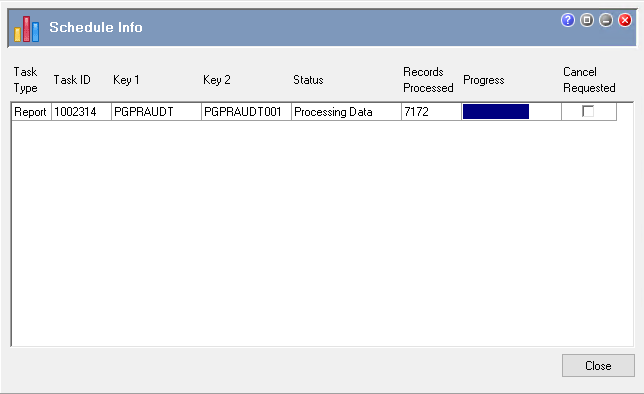
Look for reports where:
-
Status is stuck on something like Waiting or Processing data for an unusually long time, and
-
New reports are queued behind it and not progressing.
-
Step 2 - Cancel the stuck report correctly
-
In the Schedule Info grid, locate the stuck report row.
-
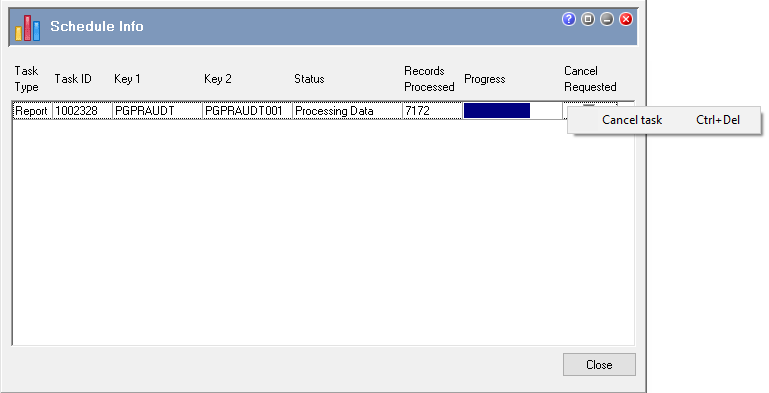
In the Cancel Requested column for that row, right‑click in the check box and choose Cancel task.
-
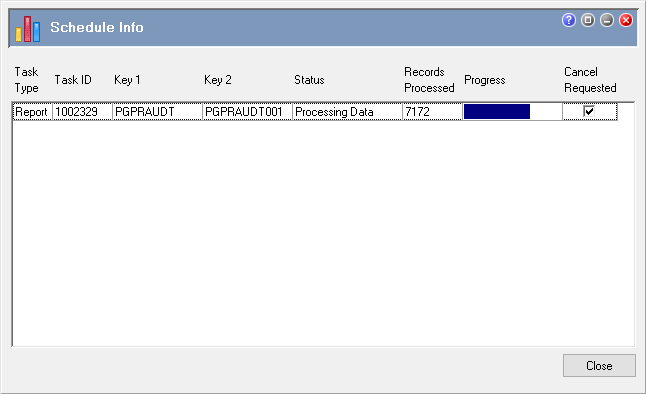
A tick will appear in the Cancel Requested box to show that cancellation has been requested.
-
The report will complete its cancellation. Depending on the environment:
-
In the manuals, the report may remain visible until the next logon, but it will no longer be processing.
-
In many real‑world cases, the row disappears from the queue after a short delay once cancellation takes effect.
-
This is important: left‑clicking the check box does not cancel the report; you must right‑click and select Cancel task from the menu.
Step 3 - Run a small system report to flush the queue
In some cases, cancelling alone is not enough and the report still appears to block subsequent jobs. In these scenarios, running a small report forces the scheduler to “flush” and acknowledge the cancelled task.
-
Close the Schedule Info window.
-
Go to Reports > Report Groups.
-
Open the PGSYSTEM (or PGPSRSYSTEM) report group.
-
This contains small, low‑impact system reports suitable for this purpose.
-
-
Run a small system report. Common options include:
-
PGSYDATA001 – Standard Data Dictionary (in the PGSYSTEM group).
-
Any other equivalent small system report in PGSYSTEM.
-
-
Let the report complete, then close it.
-
Press F10 again to reopen Schedule Info and confirm:
-
The previously cancelled report has cleared, or
-
The Status is no longer blocking subsequent reports.
-
Once the small report has run successfully, the queue should update and other reports should start processing again.