
By using the Scheduling function in PayGlobal, it is possible to automate reports, so that they're sent regularly on specific days/times.
See Scheduler User manual for more details on using PayGlobal Scheduler.
Watch Reporting Video if you are new PayGlobal and would like to become more familiar with PayGlobal Reports.
Prerequisites:
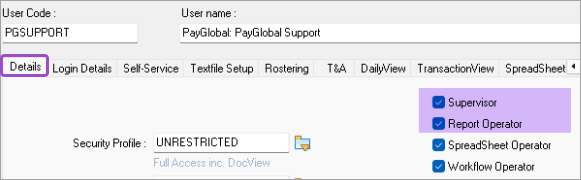
To complete all tasks, the user must be both a Supervisor and Report Operator.
Schedulers run whole Report Groups, rather than individual reports, so you’ll need to ensure the reports you want to automate are in their own report group (with the appropriate destination settings).
To then automate this so the report group is run and sent, you would first need to create a Schedule Rule, which tells PayGlobal what you are wanting it to do. This is done by:
-
Navigate to Scheduling > Schedule Rules
-
Right-click and select Add Record…
-
Enter a Code and Description, then click Save
-
Click on the Action Clauses tab, then click Edit
-
Right-click on ‘None’ and select Edit Clause
-
Select Process report group, then click OK
-
On the ‘Process report group’ window that appears, select the Report Group
More information regarding the other fields on the ‘Process report group’ window can be found in Help Topic 10239 - available here. -
Click OK
-
Right-click on the clause you’ve just created and select Insert Clause
-
Right-click on the new 'and...' line, then click Edit Clause
-
Select Send and receive and click OK
-
Click Save + Close
Next, you would need to create a Scheduler, which tells PayGlobal how often/when to run your new Schedule Rule. This is done by:
-
Navigate to Scheduling > Schedulers
-
Right-click and select Add Record…
-
Enter a Code and Description, then click Save
-
Click Edit
-
Enter the Start running date, Start running time, Run schedule every and Login as fields
More information regarding these fields can be found in Help Topic 2566 - available here.
You must schedule the report to run in the future. If you use a date or time that has passed, the schedule will fire immediately once you Send details to schedule service.
-
Click on the Schedule Rules tab
-
Right-click and select Add Record…
-
Select the Schedule Rule created above and click OK
-
Click back onto the Details tab
-
Click the Send details to schedule service button – you will be prompted to enter the password for the user entered in the Login as field (see step 5 above)
-
Click Save + Close
Using this process, PayGlobal will then process the specified Report Group at the selected frequency.
More information regarding Scheduling can be found in our Scheduler User Manual – available here.