
This article explains how to eject a user session from PayGlobal if a user is stuck logged in, holding locks, or unable to sign in because the system thinks they are still connected.
Before you start
-
You’ll need access to Administration > Tables > Users status.
-
Ejecting a user will disconnect their active session. Make sure they’re not in the middle of processing a pay or saving changes.
Step 1 – Open the Users status screen
-
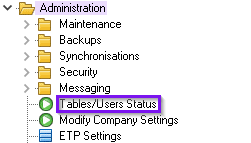
In PayGlobal, go to:
Administration > Tables > Users status. -
The Users status window opens, showing current user sessions.
Step 2 – Find the user to eject
-
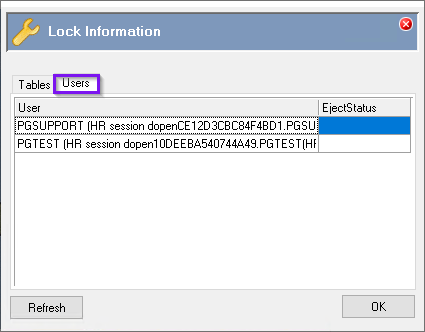
Go to the Users tab.
-
Locate the user or session you want to eject.
-
Check the user name, database, and any other details you use to confirm it’s the correct session.
-
Step 3 – Eject the user session
-
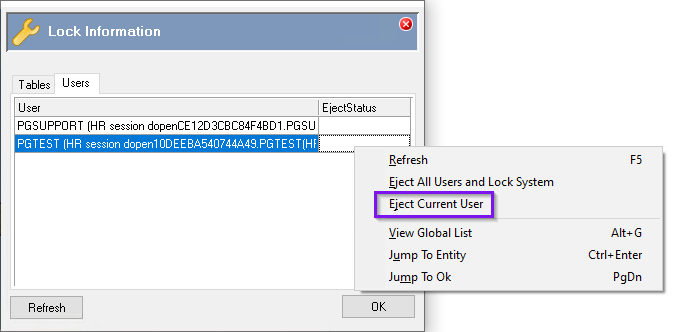
Right‑click the user you want to eject.
-
Select Eject current user from the shortcut menu.
-
The Eject status for that user will change to show the request is in progress (for example, Pending).
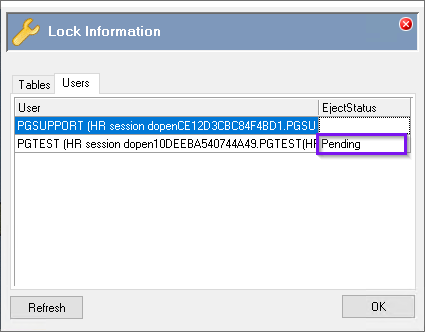
The system will complete the eject after the configured wait time (see below). Once complete, the user’s session is cleared and they can sign in again.
How to check or adjust the user eject wait time
PayGlobal uses a user eject wait time to control how long it waits before forcibly disconnecting a user.
-
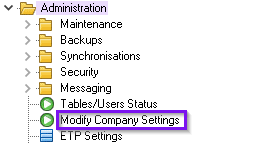
Go to Administration > Modify Company Settings.
-
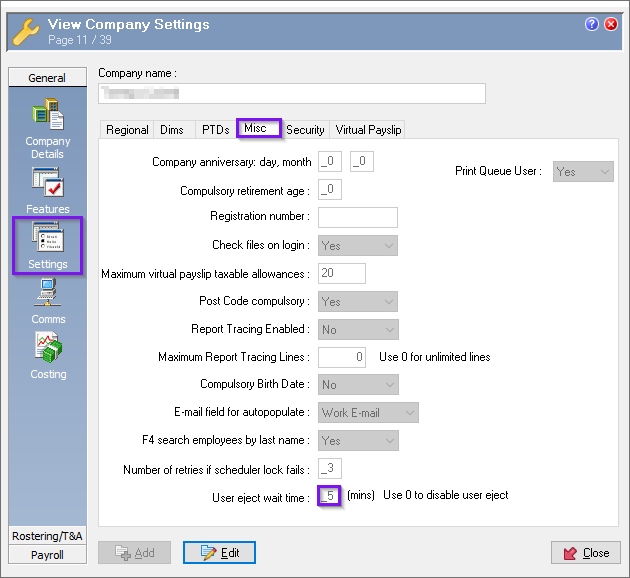
Open the Misc tab under General > Settings.
-
Find the User eject wait time setting.
-
This is measured in minutes.
-
-
Adjust the value if required, then save your changes.
Tip: A shorter wait time ejects the user faster but may interrupt work more abruptly. A longer wait time gives them more chance to finish what they’re doing before the system disconnects them.
Tip: A shorter wait time ejects the user faster but may interrupt work more abruptly. A longer wait time gives them more chance to finish what they’re doing before the system disconnects them.
Troubleshooting
-
User still can’t log in after ejecting
-
Confirm the Eject status no longer shows Pending.
-
Ask the user to fully close PayGlobal (and any remote desktop session, if used), then try again.
-
If the issue continues, capture screenshots and details and contact MYOB PayGlobal Support.
-
-
You can’t see the Users status screen or Eject option
-
You may not have the required security permissions. Contact your PayGlobal administrator to eject the user or to update your security settings.
-
For more background details, see the official PayGlobal Help topic for this function in the PayGlobal Help manual.
Sources
-
Tables/Users Status - Help Topic 410
-
Company Settings - Misc - Help Topic 279