
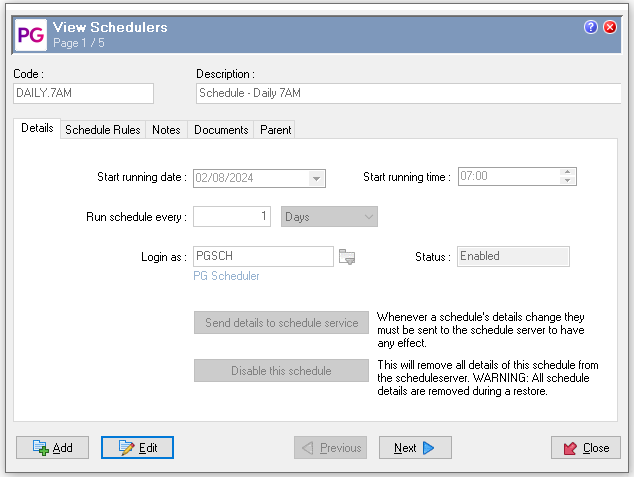
The Schedulers table under Scheduling > Schedulers lets you view and manage your system’s automated scheduling. From this page, you can see which schedulers are enabled, their run configuration (including frequency, start date, and start time), and the specified user the scheduler runs as.
View scheduler status
-
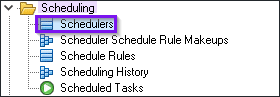
Go to Scheduling > Schedulers.
-
Review the table to see which schedulers are enabled, their frequency, start date, and start time.
-
Confirm the specified user the scheduler runs as.
Update scheduler settings
-
Go to Scheduling > Schedulers.
-
Locate the required scheduler in the table.
-
Open the scheduler in edit mode.
-
Update the required fields (e.g., frequency, start date, start time, run-as user).
-
Run the Send details to scheduler service command to apply your changes.
For More information please refer to out Help file topics on Schedulers:
If the Start Running Date is in the past, the scheduler will automatically run once the Send details to schedule service button is clicked.
When clicking the Send details to schedule service button, you will be prompted to enter the password for the specified Login as user (eg. for PGSCH).
Times within PayGlobal use NZT for Online Customers, if your database is hosted on premise it will be running on the time zone that your server uses.