
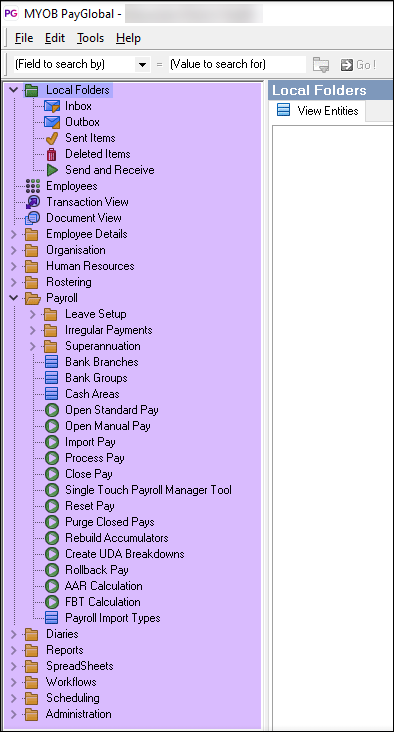
The PayGlobal Tree is the panel on the left-hand side of the main screen, used to navigate to the various features/functions available:
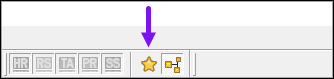
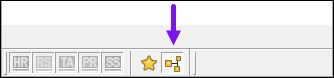
If the Tree looks empty, or the whole panel has disappeared, it's usually caused by one of two toggle buttons:
-
Show Only Favourites / Show All
-
Hide Browser / Show Browser
This article explains what each situation looks like and how to fix it.
When the Tree is empty
Symptom
-
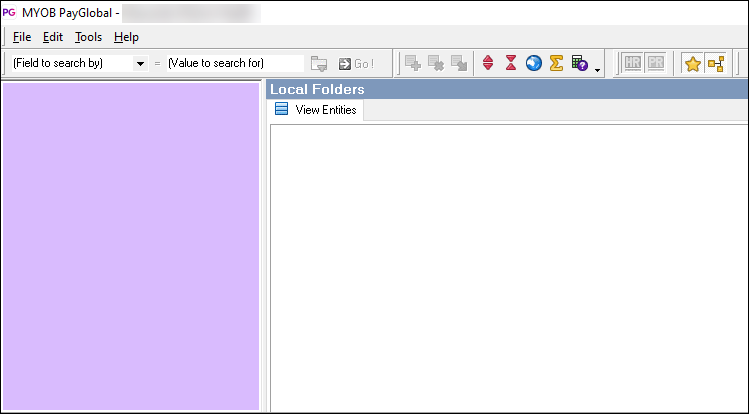
The Tree panel is visible, but it doesn't show any items:
-
You may have a “Show Only Favourites” filter applied.
-
You have not set any favourites, so nothing appears in the Tree.
Cause
The Show Only Favourites button has been clicked while you do not have any favourite items set. Because of this, PayGlobal hides all items that are not marked as favourites, and the Tree appears empty.
The Show Only Favourites button is a toggle:
-
When favourites are currently hidden, hovering over the button will show the label Show Only Favourites.
-
When favourites are currently shown only (i.e. everything else is hidden), hovering over the same button will show the label Show All (because clicking it again will show all items).
How to fix an empty Tree
-
Move your mouse over the Show Only Favourites / Show All button in the Tree toolbar.
-
Check the hover text:
-
If it shows Show All, this means the Tree is currently filtered to favourites only.
-
If it shows Show Only Favourites, the Tree is not filtered by favourites (your issue may be different).
-
-
If the hover text shows Show All, click the button once to turn off the favourites-only filter.
-
The Tree will refresh and all available items will be shown again.
If you later want to use favourites, make sure you have set at least one item as a favourite before clicking Show Only Favourites.
When the Tree is missing
Symptom
-
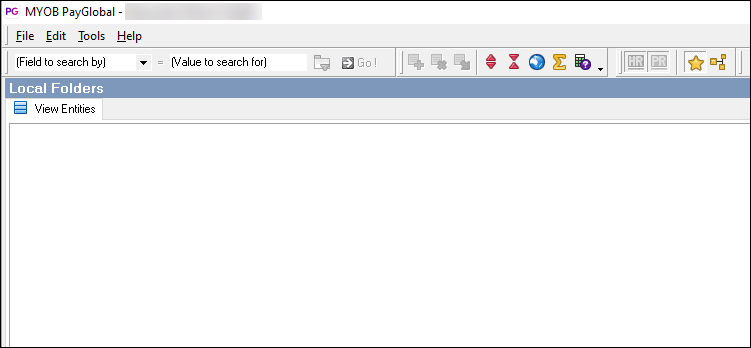
The Tree panel is not visible at all:
-
The working area fills the space where the Tree normally appears.
-
You cannot see or expand any Tree items because the entire Tree browser is hidden.
Cause
The Hide Browser button has been clicked. This hides the entire Tree browser panel from view.
The Hide Browser button is also a toggle:
-
When the Tree browser is currently visible, hovering over the button shows Hide Browser.
-
When the Tree browser is currently hidden, hovering over the same button shows Show Browser (because clicking it will bring the Tree back).
How to fix a missing Tree
-
Locate the Hide Browser / Show Browser button (usually near the Tree area or in the toolbar).
-
Move your mouse over the button and check the hover text:
-
If it shows Show Browser, the Tree browser is currently hidden.
-
If it shows Hide Browser, the Tree browser is already visible (your issue may instead be the favourites filter described above).
-
-
If the hover text shows Show Browser, click the button once.
-
The Tree browser panel will reappear, and you’ll see your Tree items again.
Summary
-
If the Tree is empty but still visible, turn off the favourites filter by clicking the Show All option on the Show Only Favourites / Show All toggle button.
-
If the Tree is completely missing, turn the browser panel back on by clicking the Show Browser option on the Hide Browser / Show Browser toggle button.
Both of these are toggle buttons, and the label you see when hovering over them tells you what action will be performed next when you click