
To delete Documents in PayGlobal you will need to have the correct security access.
You can check this by going to the Administration > User Profile to check which Security Profile is attached to the User Profile being used to Delete the documents.
Drill into the Security Profile to see if there is ‘Edit’ access to the Document View and the Document Folders tab.
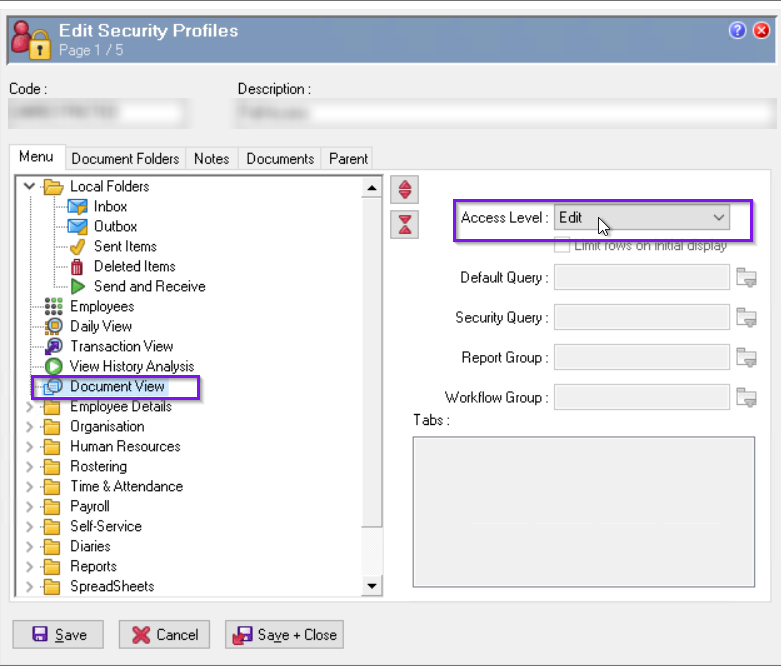
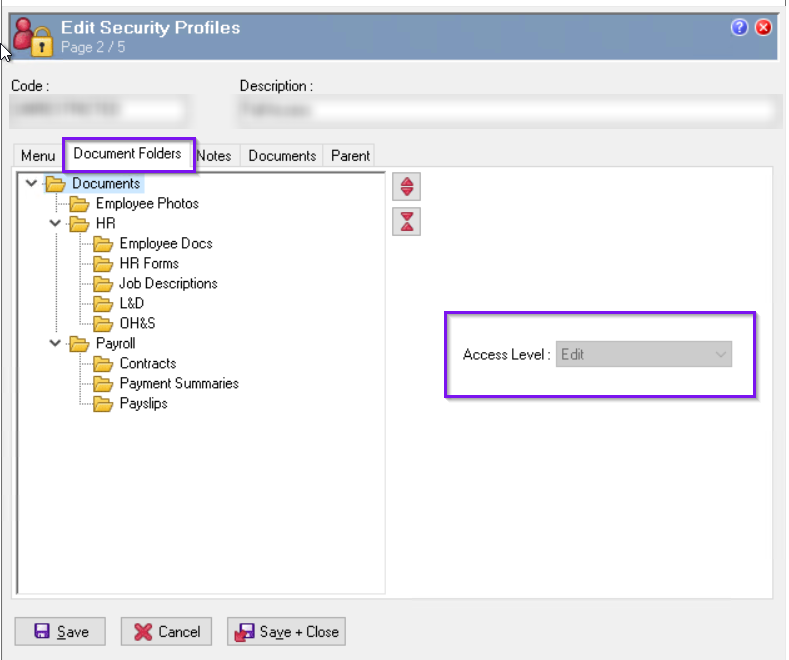
The Security Manual and the Security Video links will provide more information on navigating the Security Profiles.
To delete a document from the PayGlobal application
-
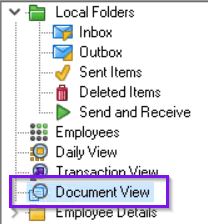
Go to Document View from the Main Menu. (double-click)
-
This will take you to a new window.
-
Click on the arrow next to the main Documents folder. This will display all the available folders.

-
You will need to find the folder where the documents are stored.
-
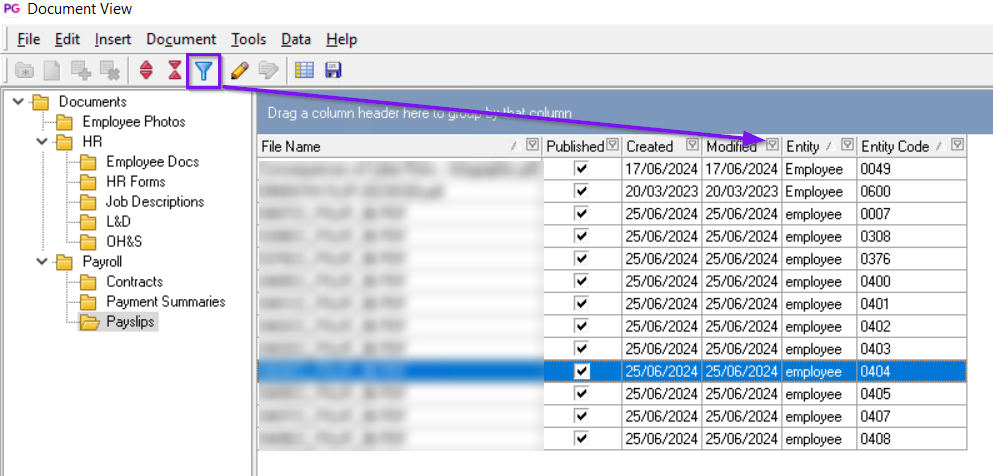
Find the document(s) you need to delete.
-
You can add a filter by clicking on any document and then click on the blue filter icon
-
Choose the date Created or Modified from the filter dropdown in the column header to narrow
your search
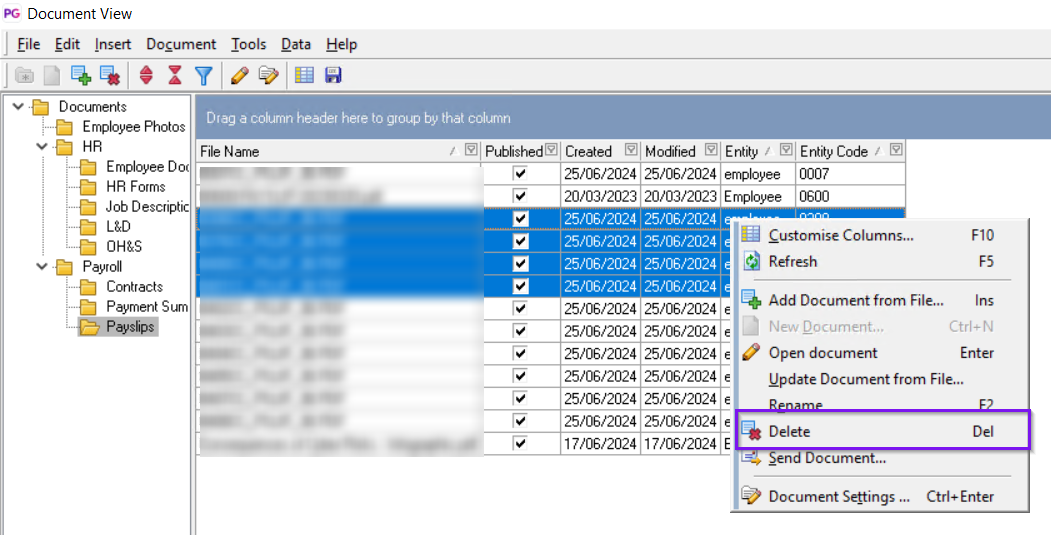
If you need to delete multiple items, click on the first document you want to delete, then while holding down Ctrl and Shift on your keyboard click on the last document. This will only work if the documents you want to delete appear in consecutive order.
-
Right-click on the selected document(s) and click Delete.
The documents will now be deleted from your database.