
Learn how to set up two-factor authentication (2FA) and sign in to IMS Cloud.
Key points:
-
2FA is mandatory. From 9 November 2026, you can’t log in to IMS Cloud without having set it up.
-
Email and SMS are not an option, you need an authenticator app on a mobile device, like a smartphone or tablet. Authenticator apps are available on Google Play and Apple App Store.
-
Do not share logins – every user should have their own IMS Cloud account connected to an authenticator app on their own mobile device.
-
Need help? See Fixing 2FA issues with IMS Cloud.
Setting up 2FA
-
Download an authenticator app for your mobile device (available on Google Play and Apple App Store).
-
Open IMS Cloud.
-
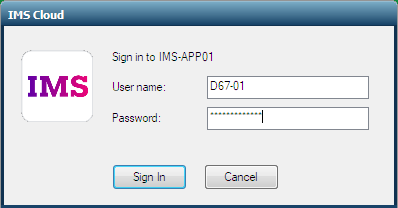
Enter your User name and Password.
-
Click Sign In.
-
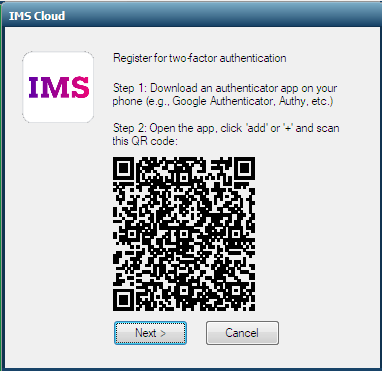
On the 2FA registration window, scan the QR code using the authenticator app you downloaded in step 1, not your normal phone camera.
-
On the 2FA registration window, click Next.
-
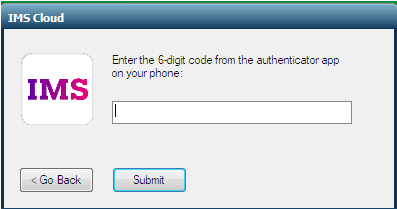
Enter the code from your authenticator app and click Submit. This signs you in to IMS Cloud and completes your 2FA setup.
Signing in with 2FA
-
Open IMS Cloud.
-
Enter your User name and Password.
-
Click Sign In. A window opens asking for an authentication code.
-
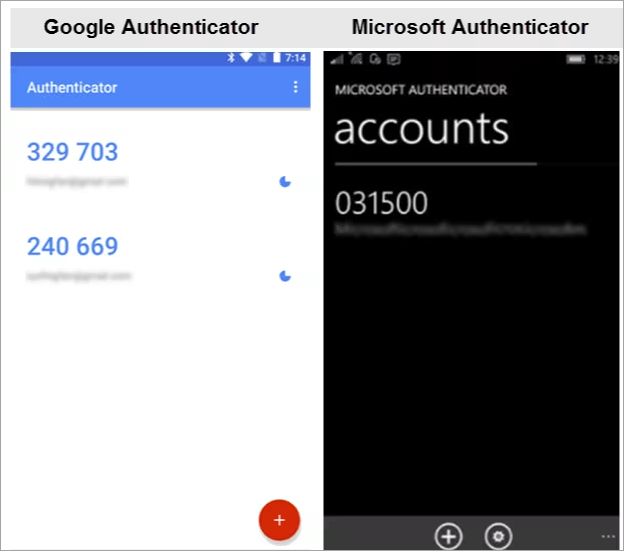
Open your authenticator app and find the code. It will look something like this:
-
Enter the code and click Submit to finish signing in.