
You can create a rule that splits a bank transaction by a percentage or by a specific amount and posts the splits into different accounts.
You can also split a transaction, then combine the splits into a single general ledger account entry. Unlike a split rule, which applies to all matching transactions, combining only applies to the one transaction you selected.
Transaction splitting is available for versions 2025.2 and later.
Splits won’t exceed the original tranaction amount
If a split amount or percentage would exceed the original transaction total, Exo Business adjusts the final split so that it doesn’t go over the original total.
If a rule unevenly splits an even transaction (e.g. splitting $3.89 into two 50% transactions):
-
The first half is rounded, e.g. to $1.95.
-
The second half is truncated, e.g. to $1.94.
This ensures the total still matches the original amount.
For example
Let’s say a transaction of $9.98 is matched, like in the following screenshot.
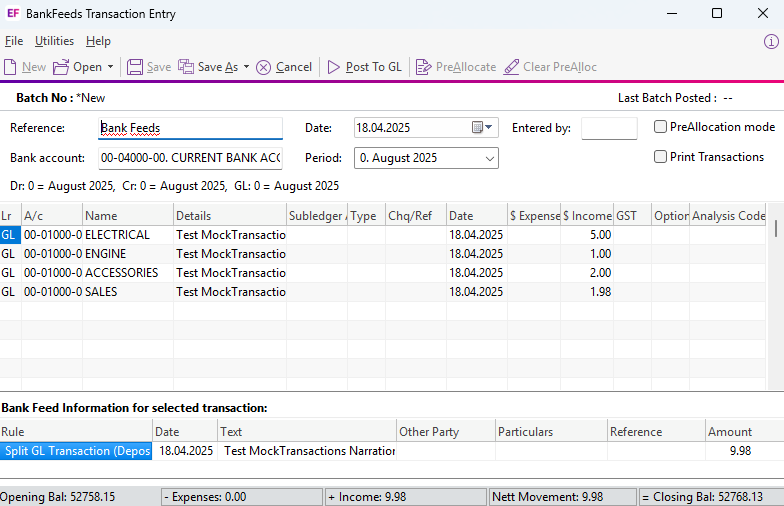
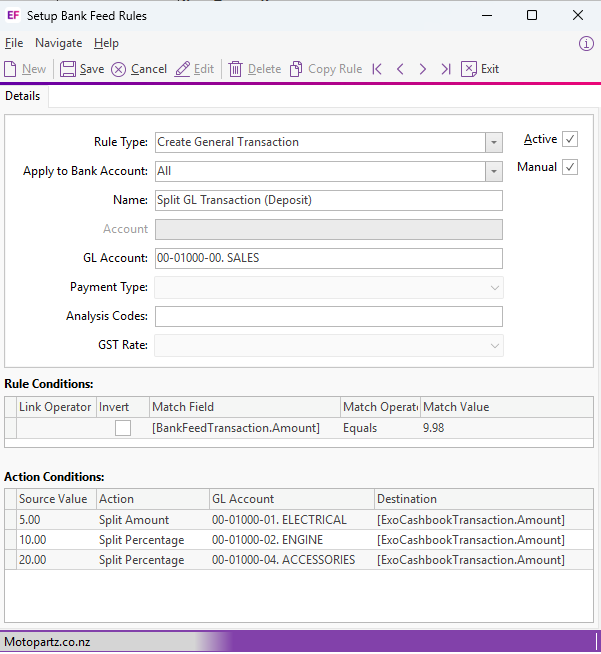
Here’s how the rule splits the transaction:
-
$5.00 using Split Amount. This is posted to account
00-01000-01 -
10% using Split Percentage. $0.998 is rounded to $1.00, then posted to
00-01000-02 -
20% using Split Percentage. $1.996 is rounded to $2.00, then posted to
00-01000-04
So far, the total of the splits is $8.00. The remaining $1.98 is posted to the account specified in the rule header (00-01000-00).
Creating a split rule
You can only use splitting for manual rules, not for match rules. But once you save your new split rule, you can apply it to any transaction.
-
In Exo Finance, go to the Setup Bank Feed Rules screen.
-
Select a Rule Type:
-
Create Debtor Transaction
-
Create Creditor Transaction
-
Create Expense Transaction
-
Create Income Transaction
-
Create General Transaction
-
-
Enter the other details and rule conditions.
-
In the Action Conditions section, choose an Action – either Split Amount or Split Percentage.
-
Set the Source Value:
-
For a split amount, set a positive amount for debtor and income transactions or a negative amount for creditor and expense transactions.
-
For a split percentage, set a value more than 0% and less than 100%.
-
-
Choose which account to post the transactions to:
-
For debtor and creditor transactions, enter a DR/CR Account.
-
For general transactions: enter a GL Account.
-
For income and expense transactions, enter both a DR/CR Account and a GL Account.
-
-
Set the Destination to
[ExoCashbookTransaction.Amount]. -
Save the rule you created.
Combining a split transaction into one general ledger entry
-
In Exo Finance, go to the Bank Feeds screen.
-
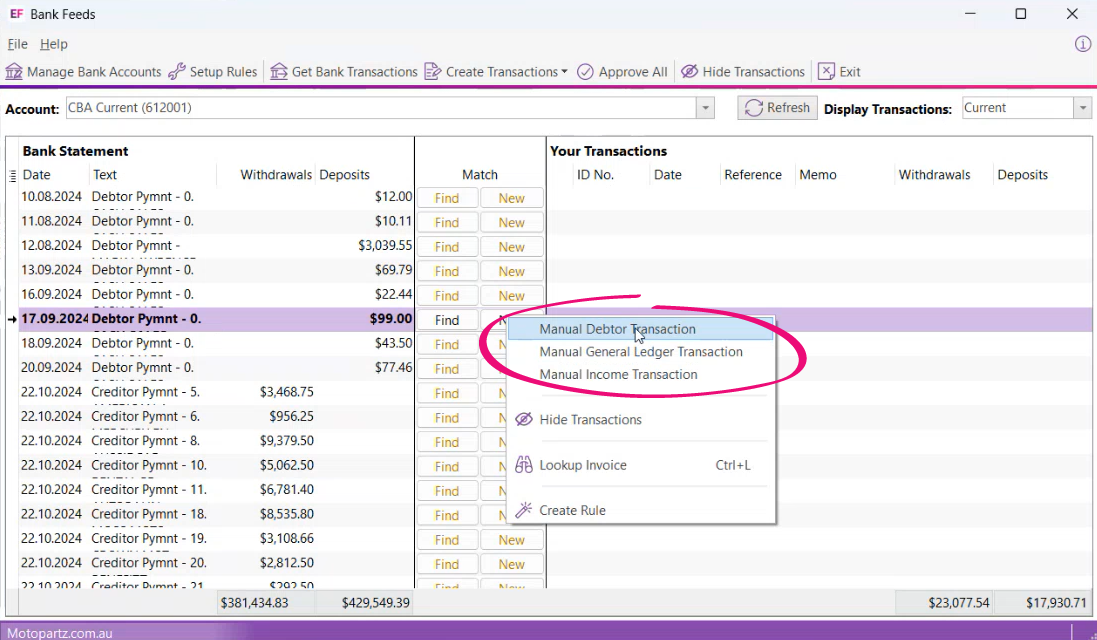
Right-click a transaction and choose a rule type to create. The BankFeeds Transaction Entry screen opens.
-
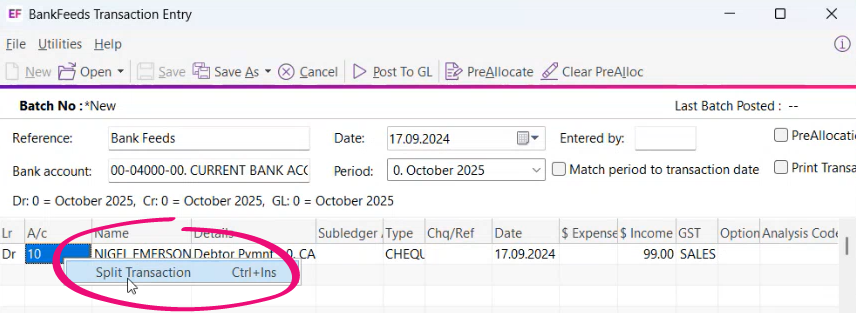
Right-click the transaction and choose Split Transaction.
-
In the Split Transaction window, choose if you want to split it by amount or by percentage.
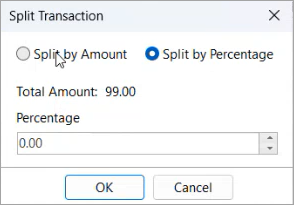
-
Click OK.
Exo Business automatically adds all split lines to the default GL account.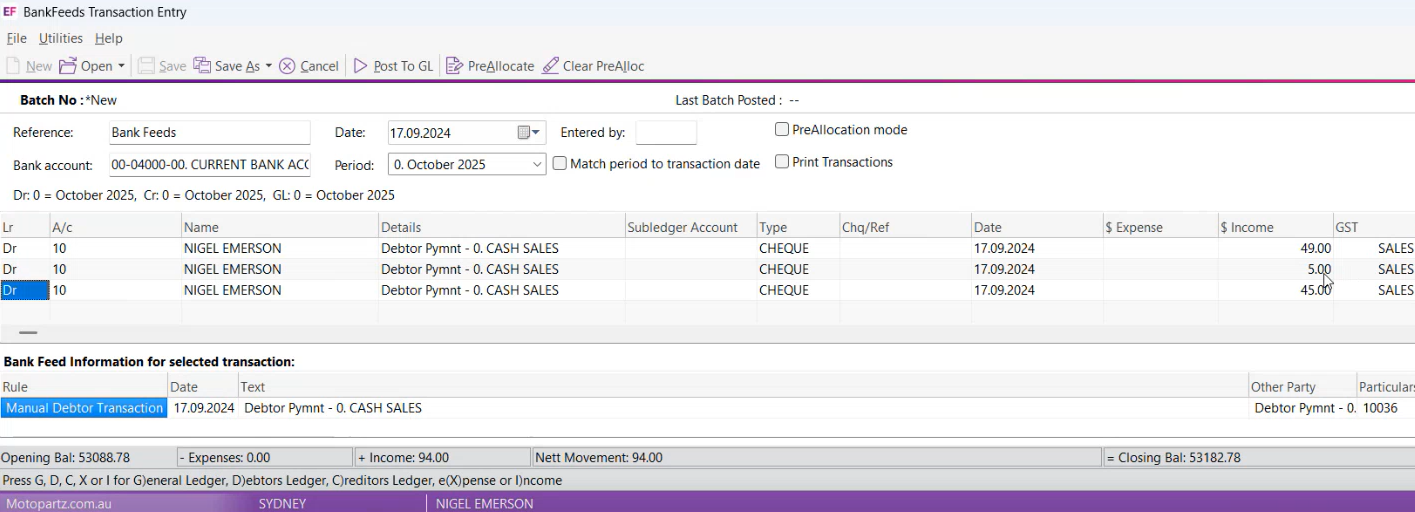
Viewing a posted split transaction
Once a transaction is posted to the general ledger (GL) and approved, it appears under the Approved filter on the Bank Feeds screen. View the relevant split transaction and its associated GL batch by clicking the arrow button.
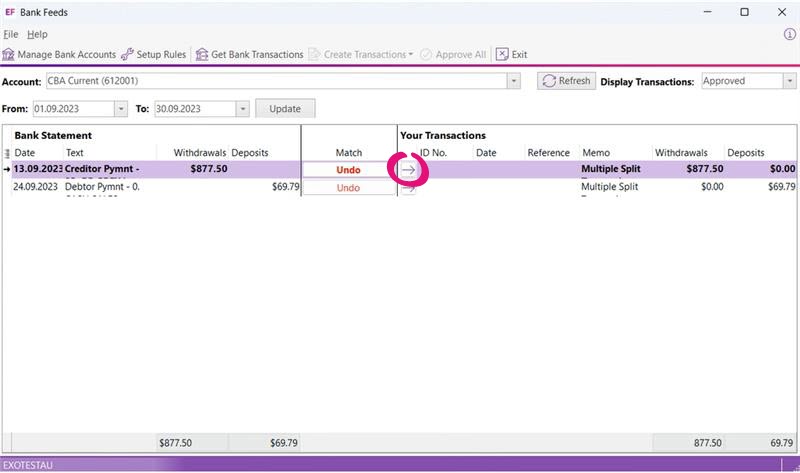

Undoing a split transaction after it’s been posted
When undoing an approved split transaction, MYOB Exo Business does not automatically match the multiple transactions to a single bank feed transaction. If you click Undo, you also need to:
-
delete the GL transaction or batch, or
-
create an opposite GL entry to reverse the transaction.
Then, split the transaction again based on the matching bank feed transaction and re-post it to the GL.