After you’ve set up rounding adjustments, it’s simple to match multiple existing GL entries to one bank transaction.
-
In MYOB Exo Finance, go to Transactions > Bank Feeds.
-
On the Bank Feeds screen, select an Account.
-
For a bank transaction you want to match, click Find.
-
On the Matching Selection window, select the GL entries that match the bank transaction.
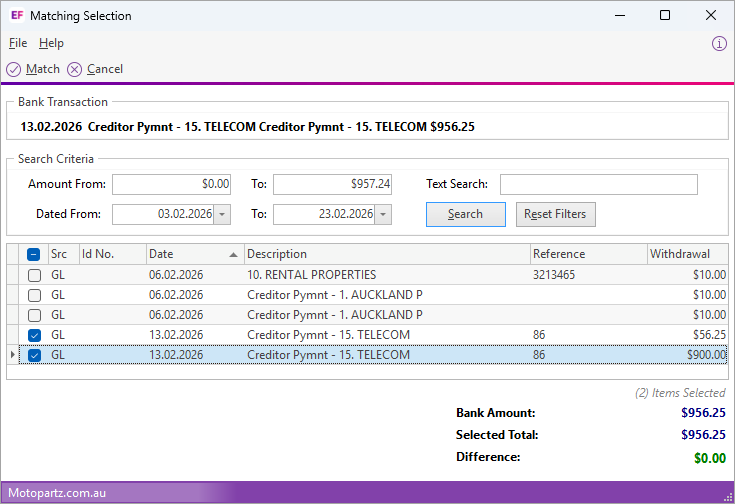
In this example screenshot, the GL entries match exactly. Sometimes, the entries might need to be rounded up or down. You can only match them if they are within the rounding tolerance. Learn more.
-
Click Match. On the Bank Feeds screen, you can see the multi-matched transactions by clicking the plus icon.
Approving a multi-matched transaction
After multi-matching a transaction, you can approve the match by clicking Approve on the Bank Feeds screen. If the match doesn’t have a rounding adjustment, any user can approve it.
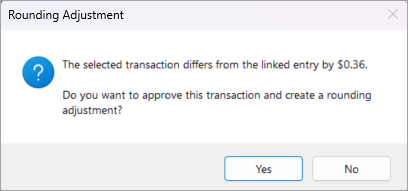
But if there is a rounding adjustment, only a user with the Allow Automatic Bank Feeds Rounding Approval profile setting can approve the match. After clicking Approve, the Rounding Adjustment window opens. Check that you’re happy with how the transaction has been rounded and click Yes.
After matching and approving your bank feeds transactions, you can do a bank reconciliation.
Undoing a multi-matched transaction
If you haven’t included a multi-matched transaction in a bank reconciliation, you can undo the match at any time by clicking Undo on the bank feeds screen.
We don’t recommend undoing a match after bank reconciliation, as it requires you to delete the bank reconciliation first. Deleting a bank reconciliation means you need to re-match all its transactions again.