
Before you can match multiple GL entries to one bank transaction, you have to set up rounding adjustments.
When the total of multiple GL entries does not equal the exact amount of a bank transaction, you can still match them – as long as the difference falls within the rounding tolerance set up for your business. This is called a rounding adjustment.
To make sure your GL is balanced and covers the difference in matched transactions, MYOB Exo Business creates a rounding transaction after your do your next bank reconciliation. You have to select which GL account the rounding transaction is posted to.
After following the setup steps below, you’ll be ready to multi-match transactions.
For example
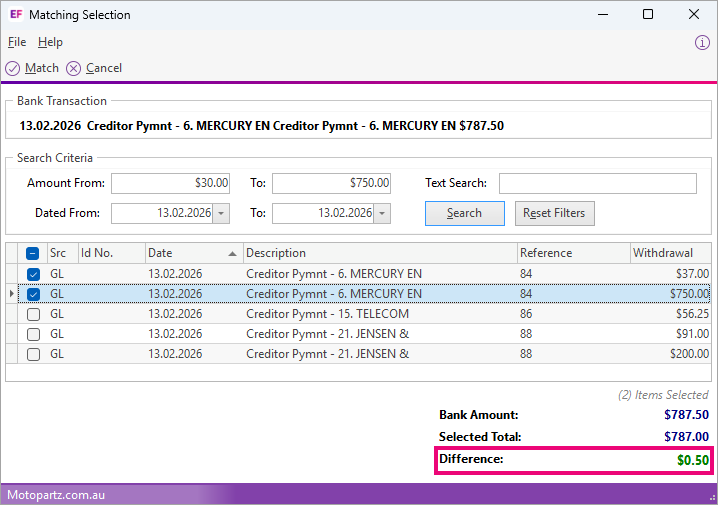
Say your business has a rounding tolerance of 0.99. This lets you match a $787.50 bank transaction with two GL entries that total $787.00, because the 50 cent difference falls within the 50 cent rounding tolerance.
Set a rounding tolerance
-
Open MYOB Exo Configurator.
-
On the toolbar, click Profiles.
-
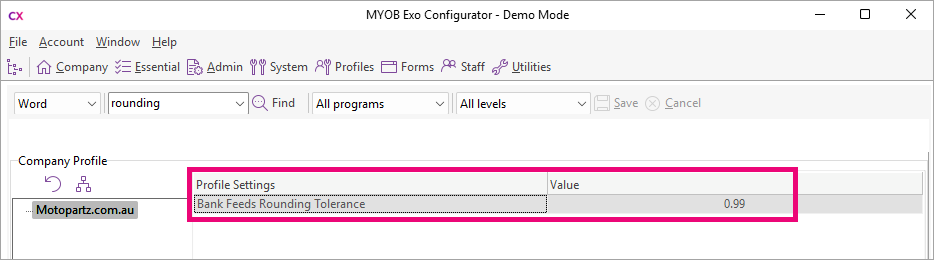
Search for Bank Feeds Rounding Tolerance company profile setting.
-
Set the rounding tolerance value. This can be as strict or as generous as your company needs. For example, a value of 0.01 requires transactions to be within 1 cent of each other, whereas a value of 5 requires them to be within 5 dollars.
-
Save your changes.
Set a rounding transaction GL account
-
Open MYOB Exo Configurator.
-
On the toolbar, click Essential.
-
In the left panel, go to Business Essentials > GL Control Accounts.
-
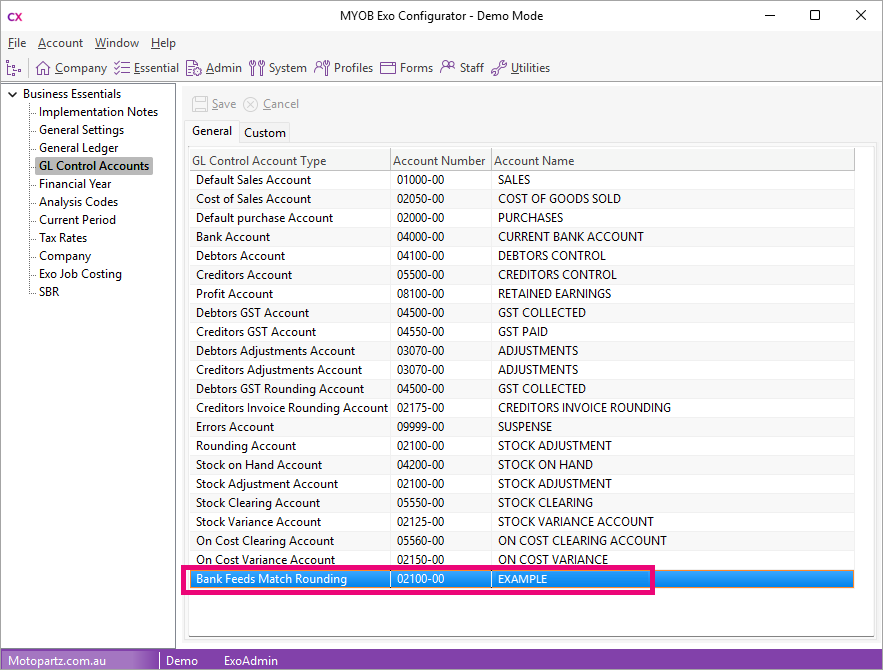
For the Bank Feeds Match Rounding control account type, select the GL account you want rounding transactions to be posted to.
-
Save your changes.
Choose which users can approve matched transactions with a rounding adjustment
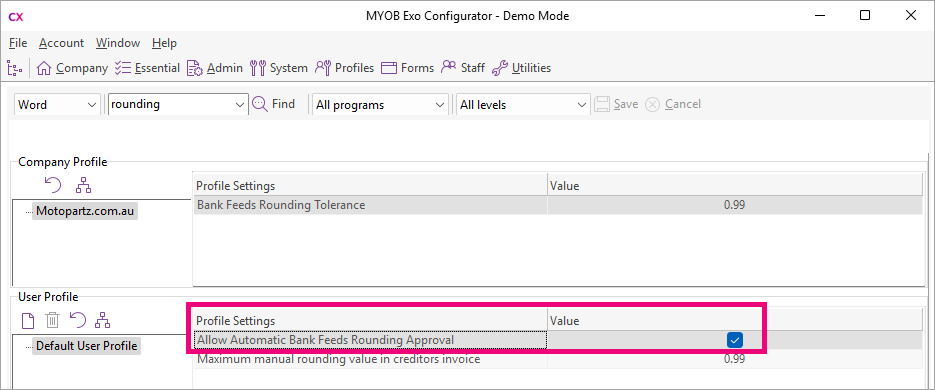
For a user to be able to approve rounding adjustments, their user profile must have the Allow Automatic Bank Feeds Rounding Approval profile setting enabled.
-
Open MYOB Exo Configurator.
-
On the toolbar, click Profiles.
-
Select the User Profile that you want to be able to approve rounding adjustments.
-
Select the Allow Automatic Bank Feeds Rounding Approval profile setting checkbox.
-
Save your changes.