
Overview:
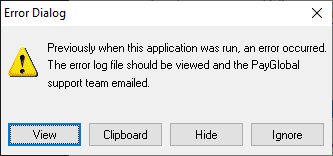
PayGlobal error logs are written to a file named Error.log when the desktop application encounters an exception. The next time a Supervisor signs in, PayGlobal displays an error dialog that lets them view, copy, or clear the log so it can be reviewed and shared with support.
These can be viewed within the application under Administration > Security > Maintain Log files
Where the logs live:
Company Log folder: Error logs are stored under the company data path’s Log subfolder. The presence of a Log directory is part of the standard company folder structure required by PayGlobal.
Online vs on‑premise behavior (what customers will see):
-
PayGlobal Online environments: The error dialog’s Delete button is re-labelled Hide for Online Customers so it’s preserved but won’t re‑prompt the user on login.
-
On‑premise environments: The dialog shows the standard Delete option, which removes the current
Error.log. If otherError*.logfiles exist, the dialog will surface them in sequence on subsequent logins.
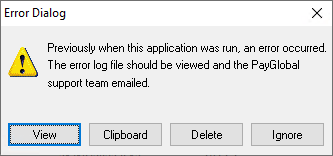
For on‑premise databases, avoid deleting logs until they’ve been reviewed or copied, as Error.log deletion removes the current file from the Log folder view in the dialog.
What’s in an Error.log entry (key fields explained):
-
Date/Time
Shows when the exception was captured, with milliseconds. Match this timestamp to when the issue occurred to ensure you’re looking at the right entry. -
Username
Identifies the signed‑in user (or run identity, such as a scheduler account). This helps determine if the issue is user‑specific or system‑wide. -
Exception class
Shows the type/category of the error that occurred (for example,EOleException,EAccessViolation,EInOutError,EOutOfResources). This helps when escalating to support or development. -
Exception message
Contains the specific error text (for example, “Out of memory.”, “Access violation at address…”, or “Cannot open file 'C:\Program Files\PayGlobal\hr.ini'…”). This is the most actionable line for initial triage and search within documentation or prior cases.
How to collect and share logs:
-
Use the error dialog’s View to read the log or Clipboard to copy it for support. In Online, use Hide (instead of Delete) to preserve the file with a timestamped name for analysis.
-
To locate files directly, open hr.ini, identify the CompanyPath, then browse to the
Logsubfolder forError*.logfiles to share with support.
FAQs
-
What is Error.Log?
The file PayGlobal writes when an exception occurs, containing details to diagnose the issue. -
Why do I see multiple prompts?
The dialog enumeratesError*.logfiles and always deals withError.logfirst; remaining logs will appear on subsequent logins so none are skipped. -
Why can’t I delete logs in the PayGlobal Online environment?
Delete is re‑labelled Hide and the file is renamed with a timestamp so it’s preserved for support analysis.
Customer guidance (what to include when raising a ticket)
-
Include the approximate date/time and what action you were taking so support can line up the correct entry in
Error.logand any adjacent logs. -
Attach the full Error.log (or the timestamped
Error*.logif you used Hide), plus any screenshots of on‑screen messages that might offer additional context. -
If multiple people are affected, note the usernames and times to identify whether the error is user‑specific or widespread.